
Selecting text in a VBA Userform Text box
Content
Introduction
Userforms are a key way in VBA to interact with the user. Unfortunately, the MSForms library which hosts the controls for the userform is a rather antiquated piece of code with many oddities. Here I demonstrate one of those oddities and show you how to fix it.
The example file
Download the file it contains a userform that demonstrates the problem and the solution.
The issue
The aforementioned file contains one userform, which has a search box and a textbox containing some made-up text. As you start typing in the search box, the first found instance is selected in the text box. A Previous and Next button allow you to navigate from one found item the the next. At least, that is the intention. The screenshot below is in fact an animated gif (hover your mouse over it or tap it to see the animation) but even the still demonstrates the issue: the text selected in the box is not the text we were looking for, the selection is shifted some characters.
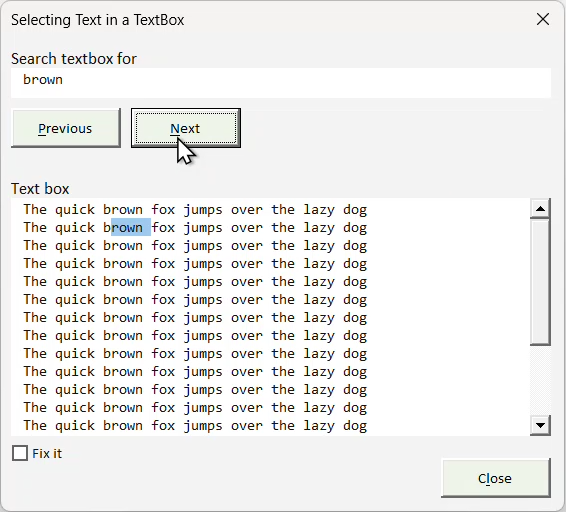
Why does this happen?
To select text in a text box, we use the SelStart and SelLength properties. And you would expect this to work:
Dim ctl As MSForms.Control
Dim pos As Long
Dim ct As Long
Set ctl = Me.ActiveControl
If instance > 1 Then
For ct = 1 To instance
If pos = 0 Then
pos = InStr(txtBox, txt2Select)
Else
pos = InStr(pos + Len(txt2Select), txtBox, txt2Select)
End If
Next
Else
pos = InStr(txtBox, txt2Select)
End If
If pos > 0 Then
With Me.tbxText
.SetFocus
.SelStart = pos - 1
.SelLength = Len(txt2Select)
End With
Else
ResetSelection Me.tbxText
End If
ctl.SetFocus
End Sub
However, the character counting inside a text box has one idiosyncracy: Each "Enter" counts as two characters!
The solution
The solution is therefore relatively simple: Looking back from the point where we want the selection to start, count the number of vbLf characters and subtract that number from the position:
If position <= 1 Then Exit Function
CountNewLinesBefore = Len(Left$(textValue, position - 1)) - _
Len(Replace$(Left$(textValue, position - 1), vbLf, vbNullString))
End Function
Implemented in the routine shown in the previous chapter:
Dim ctl As MSForms.Control
Dim pos As Long
Dim ct As Long
Set ctl = Me.ActiveControl
If instance > 1 Then
For ct = 1 To instance
If pos = 0 Then
pos = InStr(txtBox, txt2Select)
Else
pos = InStr(pos + Len(txt2Select), txtBox, txt2Select)
End If
Next
Else
pos = InStr(txtBox, txt2Select)
End If
If Me.cbxFix.Value Then
pos = pos - CountNewLinesBefore(txtBox, pos)
End If
If pos > 0 Then
With Me.tbxText
.SetFocus
.SelStart = pos - 1
.SelLength = Len(txt2Select)
End With
Else
ResetSelection Me.tbxText
End If
ctl.SetFocus
End Sub
Note how the code temporarily sets the focus to the text box. If this is omitted, the text box will not scroll to the selected position.
Now it works:
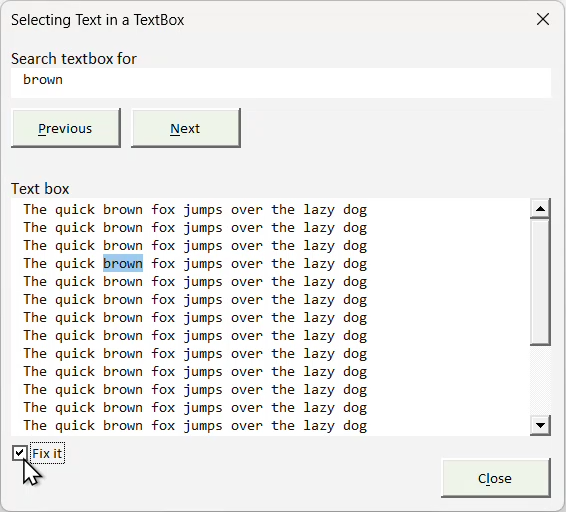
Frequently asked questions
Why is the highlighted text shifted in a multiline VBA TextBox?
MSForms counts each line break as two characters internally, so a direct SelStart based on InStr can be off in multiline content.
Does this issue happen in single-line text boxes too?
Usually no. The offset problem appears when line breaks are present in multiline text.
Which properties are used to select text in a TextBox?
Use SelStart for the first character and SelLength for the number of characters to select.
Why does pressing Enter affect the selection position?
In this control, Enter introduces a line break that affects internal indexing differently than expected from plain string search positions.
How do I correct the starting position?
Count line-feed characters before the match and subtract that count from the position returned by InStr.
Should I count vbLf, vbCr, or vbCrLf?
For this pattern, counting vbLf in the textbox value is sufficient and is what the article demonstrates.
How do I select the second or third occurrence of a word?
Repeat InStr searches from the end of the previous match until you reach the requested instance.
Why does the code temporarily set focus to the TextBox?
Without focus on the target TextBox, the control may not scroll to show the selected text.
What should happen when no match is found?
Leave the current selection unchanged or clear it, and provide user feedback such as a status label or message.
Can this be made case-insensitive?
Yes. Use an InStr variant with a text-compare mode when searching, then apply the same offset correction.
Does this apply only to Excel?
The behavior is related to MSForms controls, so similar logic can apply in other VBA hosts that use the same control library.
Will this work with long text blocks?
Yes, but repeated searching can become slower. Cache positions if you need very frequent next/previous navigation.
Where can I download the working sample workbook?
Use the download link in The example file section.
Where can I read the short explanation of the bug and fix?
See The issue and The solution for the complete walkthrough.
Comments