
Creating an addin from an Excel macro
Pages in this article
- Preparations
- Book or add-in
- Menus
- Toolbars
- Limit access
- Protect code
- Initialise
- Save Settings
- UI Languages
- Setup
- Conclusion
Blocking Direct Access To Subs And Functions
In general, utilities are built using various functions and subroutines, each having specific tasks. Very often it is convenient (and even to be advised) to limit user access to just those functions and subroutines that enable the user to access the user interface or core functions of the utility. All other routines (those that do the internal "house-keeping" work and those performing sub-tasks) should be kept hidden from the users view.
By default, all subs are visible in the Macro dialog (see figure below)
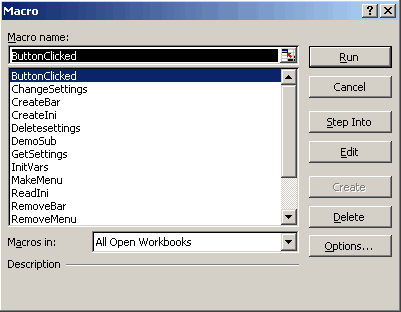
Macro dialog (Alt-F8 from within Excel)
It is not a good idea when all subs in the utility are shown to the user. Some subs will very likely only work when called at the appropriate places in other subs or functions and thus exposing them to the user may cause serious trouble. Subroutines that do housekeeping work for the utility do not belong in this list so should be hidden from view. Arguably one could remove all subroutines from the list, since it is better to grant access to the methods and functions through menu's and toolbars anyway. Below are three possible methods to control what is shown in the above dialog and what isn't.
Make the module private
By adding the text:
at the top of a module, all subs in that module are removed from the macro list. They can still be started from that dialog however, by simply typing their name and clicking Run.
Make the sub Private
'Code
End Sub
The disadvantage of using this method is that the sub is now inaccessible from outside the module that contains it. This is no problem when the sub will only be called from within the module.
Use an optional argument
Another way to hide subs from view is by giving them an optional argument:
'Code
End Sub
This subroutine doesn't need an argument when one wants to call it:
InvisibleSub
Using the argument would of course yield the same result, provided the argument is not used inside the subroutine.


Frequently asked Questions
What is the purpose of blocking direct access to subs and functions in an Excel macro addin?
Why is it not advisable to show all subs in the Macro dialog to users?
How can making a module private affect the visibility of its subs in the Macro dialog?
What happens when you make a subroutine private in VBA?
How does using an optional argument help in hiding subs from the Macro dialog?
What is the recommended way to grant user access to functions and methods in an Excel utility?
What are the risks of exposing all subroutines to users in an Excel macro utility?
Can private subs be run from the Macro dialog, and if so, how?
What is the effect of adding 'Option Private Module' at the top of a VBA module?