
XML and Excel
Pages in this article
- What is XML
- Characteristics of XML
- Structure of XML
- XML Schemas
- XML in Excel
- XML Validation
- Conclusion
XML in Excel
Let's get a bit more practical and use Excel to do something with XML files. With Excel 2003/2007/2010/2013 importing XML data is very simple. Unfortunately, the XML facilities are only available in Excel 2007 and up and in the Microsoft Office Professional or ultimate versions of Excel 2003, or when Excel 2003 is bought as a standalone package. When you select File (Office button in Excel 2007 and up), Open from Excel, then you will see xml file types are shown along with the available Excel files:
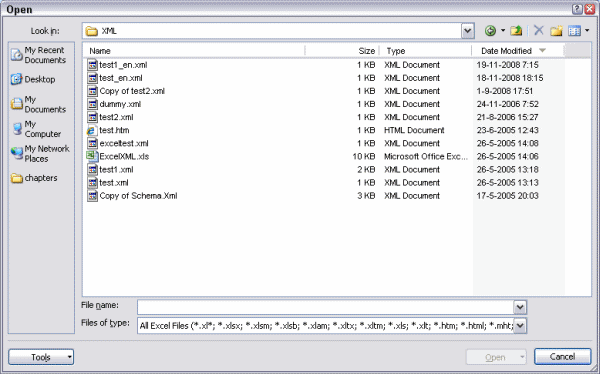
Figure 2: The File, Open window of Excel 2007 and up.
Selecting the file test-en.xml causes a small window to appear (see figure 3).
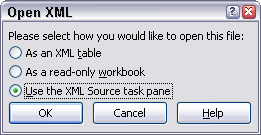
Figure 3: Excel asking what to do with the XML file
By selecting the third option Excel will analyse the structure of the
XML file and present the structure in the taskpane (figure 4). Excel
does not open the XML file at this moment.
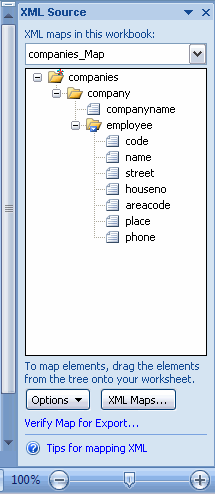
Figure 4, The structure of the xml file shows up in the taskpane
The elements of the XML file can now be tied to cells on the sheet, simply by dragging them from the task pane to a cell in Excel. See Figure 5 and 6.
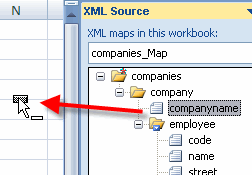
Figure 5: Dragging an element to an Excel cell
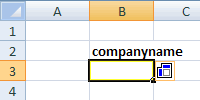
Figure 6: Result after dropping the element
By dragging an element which contains multiple other elements (or by selecting multiple elements in the taskpane using control+click or shift+click) all elements are placed next to each other as a list:(see figure 7).

Figure 7: List produced by dragging the "employee" element to the sheet
Now a template has been defined which can import data from XML files which have the same structure as the one we "opened" in Excel. We can import the data from test_en.xml, simply by pressing the refresh button on the "External Table Data" group of the custom "Table tools, design" tab of the ribbon in Excel 2007 and up, or by clicking the Refresh XML data button on the List toolbar of Excel 2003 (see figure 8 and 9). The data from test_en.xml will be read into our newly created template. See figure 10.
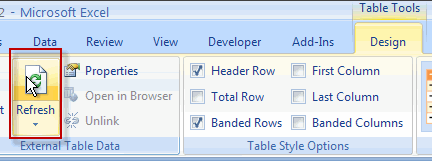
Figure 8: Refresh Data using the ribbon
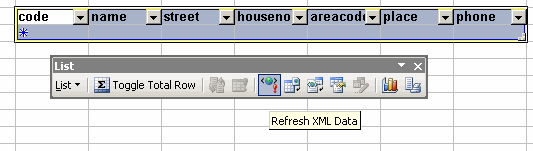
Figure 9: Button "Refresh XML data"on the "List" toolbar
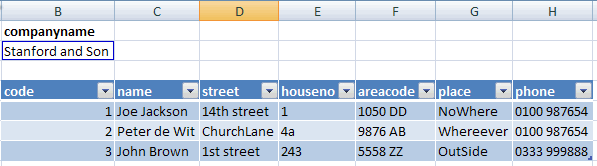
Figure 10: Result of importing the data
To import a different file into the same structure, use the connection properties dialog, which you can access by clicking the dropdown arrow below the refresh button (see figure 11):
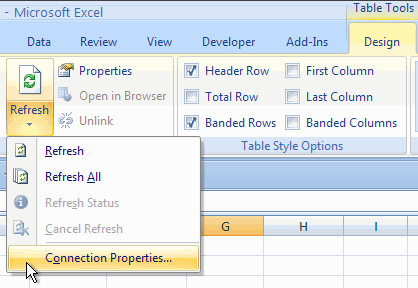
Figure 11: Changing connection properties to Import another XML file into Excel
After clicking connection properties, click the Details tab on the dialog that shows up and you can hit the browse button to access a different XML file. Or -in Excel 2003- Simply press the "Import XML" button on the List toolbar.


Frequently asked Questions
What versions of Excel support XML importing?
How do you open an XML file in Excel?
What happens when you select an XML file in Excel?
How does Excel display the structure of an XML file?
How can you map XML elements to Excel cells?
What happens when you drag an XML element containing multiple sub-elements to Excel?
How do you refresh XML data in Excel after creating a template?
How can you import data from a different XML file into the same Excel template?
What is the purpose of the connection properties dialog in Excel XML import?
Which Excel versions have the "Refresh XML data" button on the List toolbar?
Comments