
An all-VBA Rich Text Box control for Excel, Word and Access
Content
- Introduction
- Download
- Rich Text Box features
- Files to import into your VBA project
- Add the control to a UserForm
- How the Rich Text Box works
- Markup syntax
- Format characters in code
- Text and markup editing
- Keyboard control and focus
- Resizing and cleanup
- Compatibility
- Version history
- Disclaimer
- Other controls
- Frequently asked questions
Introduction
The standard MSForms TextBox is useful for ordinary text, but it cannot display different formatting within its value. A real RichEdit control would solve that problem, but it would also introduce an external ActiveX dependency, registration issues and platform differences.
This all-VBA Rich Text Box look-alike avoids that issue. It uses a standard MSForms Frame as its host and creates ordinary MSForms labels for the display of the formatted text. A temporary TextBox allows the user to edit the text or the markup.
The result is a reusable control with no RichEdit reference and no Windows API dependencies. The source files are deliberately kept together so you can copy the control into your own UserForm project.
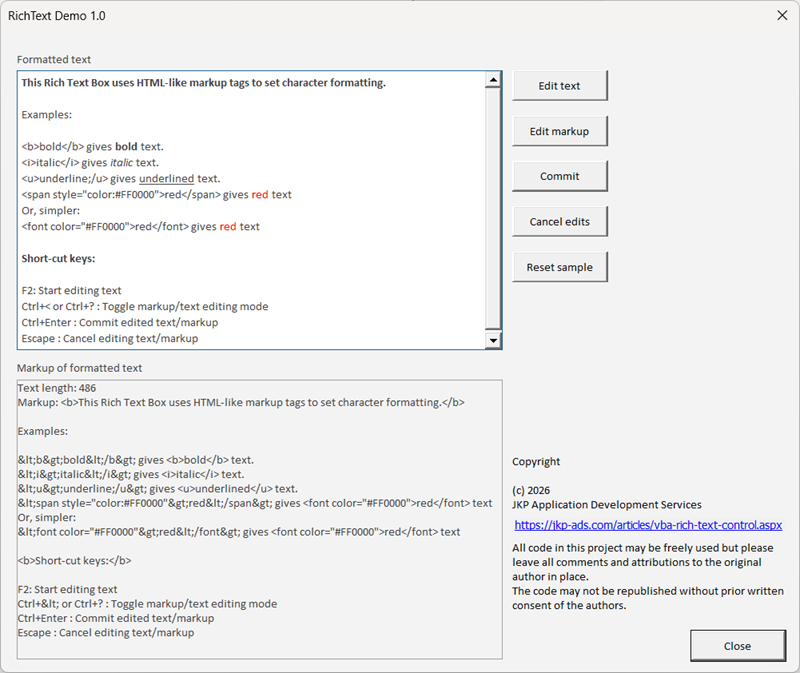
Here is a screen-shot of the demo form which is in the demo workbook (see the download section)
Download
Download Rich Text Box Demo Excel file (including documentation) Build 1.0.2, 2 Oct 2026.
Rich Text Box features
- HTML-like markup for bold, italic, underline and strikethrough text.
- Font name, font size, foreground color and background color markup.
- Clickable link runs with host-controlled handling through the
LinkClickevent. - One-based
Charactersranges for programmatic formatting. - Plain-text editing and source/markup editing.
- Formatting-preserving plain-text edits where unchanged text keeps its format.
- F2, Ctrl+Enter, Escape and markup-toggle (Ctrl+<) keyboard shortcuts.
- The host-frame shows a focus border indicating control focus
- Explicit cleanup of generated controls.
Files to import into your VBA project
The complete reusable control consists of three class modules:
clsRichTextBox.cls: The controller, parser, renderer and editor lifecycle.clsRichTextCharacters.cls: The one-based range object used for code-driven formatting.clsRichTextLinkLabel.cls: Keeps click-event handlers connected to generated labels used for links.
Add the control to a UserForm
The UserForm must contain a design-time MSForms Frame. Keep the mandatory
host routines together: declare the control, assign HostFrame,
forward the Frame's Enter, Exit and Resize events, focus the control on
form activation, and call Terminate before the form is unloaded.
Private WithEvents mcRichText As clsRichTextBox
Private Sub UserForm_Initialize()
Set mcRichText = New clsRichTextBox
Set mcRichText.HostFrame = Me.frRichText
mcRichText.Markup = "This is bold and italic."
End Sub
Private Sub UserForm_Activate()
If Not mcRichText Is Nothing Then mcRichText.SetFocus
End Sub
Private Sub frRichText_Enter()
If Not mcRichText Is Nothing Then mcRichText.EnterExit False
End Sub
Private Sub frRichText_Exit(ByVal Cancel As MSForms.ReturnBoolean)
If Not mcRichText Is Nothing Then mcRichText.EnterExit True
End Sub
Private Sub frRichText_Resize()
If Not mcRichText Is Nothing Then mcRichText.Resize
End Sub
Private Sub UserForm_QueryClose(Cancel As Integer, CloseMode As Integer)
If Not mcRichText Is Nothing Then mcRichText.Terminate
Set mcRichText = Nothing
End Sub
The Frame name in this example is frRichText. Use your own
Frame name in all mandatory routines. The buttons and status label in the
demo are optional host code, not part of the minimum control integration.
How the Rich Text Box works
The control stores plain text separately from a format array with one entry per character. Each entry contains the font name, size, bold, italic, underline, strikethrough, weight, charset, foreground color, background color and link target.
For display, adjacent characters with the same format are combined into
one set of characters. Each set of characters is represented by an ordinary MSForms label
in its caption. The label's font
is applied before AutoSize, so the next run can be placed directly
beside it because the control width is automatically updated.
The parser starts with the host Frame's font name, font size and colors as defaults. Bold, italic, underline and strikethrough are off unless markup or code turns them on.
Markup syntax
The source editor accepts an HTML-like syntax. It is not an HTML renderer. The following forms are supported:
<b>bold</b>and<strong>strong</strong>.<i>italic</i>and<em>emphasis</em>.<u>underlined</u>and<s>struck</s>.<size=12>large</size>and<font=Calibri>text</font>.<font color="#FF0000">red</font>.<span style="color:#FF0000;background-color:#FFFF00;font-size:12">text</span>.<link=target>caption</link>marks a clickable run and raisesLinkClickwith the target.
The control does not decide what a link target means or navigate automatically. The host handles the LinkClick event. Link appearance is set with ordinary formatting tags nested inside the link tag; for example, <link=url:https://jkp-ads.com><u><font color="#0563C1">jkp-ads.com</font></u></link>.
The demo uses url: for websites and sheet: for worksheet ranges. A target such as sheet:Overview!A1,A3 activates the Overview worksheet and selects both cells. Worksheet names with spaces may be enclosed in apostrophes, and the range address may contain comma-separated areas.
To display a tag literally, escape its angle brackets. For example,
<b>bold</b> displays as <b>bold</b>
instead of applying bold formatting. Ampersands, less-than signs and greater-than
signs are escaped when the control processes the markup into formatted
text.
Debug.Print mcRichText.Text
Debug.Print mcRichText.Markup
Format characters in code
Characters uses a 1-based start position and length, like
Excel's Characters object. It returns a temporary range object with formatting
properties. A mixed property value returns Null.
Set oCharacters = mcRichText.Characters(1, 8)
oCharacters.Bold = True
oCharacters.ForeColor = RGB(192, 0, 0)
mcRichText.Characters(10, 4).Italic = True
mcRichText.Characters(15, 10).Underline = True
Setting the Text property from VBA replaces the text and starts with the default
format. Plain-text editing is different: unchanged prefix and suffix characters
keep their formatting, and newly inserted text inherits the surrounding
format where possible.
Text and markup editing
The control has two editing views. Plain-text editing uses a temporary multiline MSForms TextBox and commits through the formatting-preserving edit path. Markup editing puts the canonical markup in the same temporary TextBox and parses it when committed.
Call BeginEdit for text editing or BeginSourceEdit
for markup editing. ToggleEditMode switches between the two
during one edit session. Invalid markup raises ParseError and
leaves the last valid content intact.
mcRichText.BeginEdit
End Sub
Private Sub cmdMarkup_Click()
mcRichText.BeginSourceEdit
End Sub
Private Sub cmdToggle_Click()
mcRichText.ToggleEditMode
End Sub
Private Sub cmdCommit_Click()
mcRichText.CommitEdit
End Sub
Private Sub cmdCancel_Click()
mcRichText.CancelEdit
End Sub
Keyboard control and focus
The controls host is a Frame, which cannot receive keyboard events
itself. The control therefore creates a small hidden TextBox as a focus
proxy. The host UserForm should call SetFocus on activation
and forward the Frame's Enter and Exit events to EnterExit.
Keyboard short-cuts include:
F2: start plain-text editing.Ctrl+Enter: commit the current edit.Escape: cancel the current edit.Ctrl+?orCtrl+<: toggle text and markup editing where the keyboard layout reports the chord.
Because punctuation key codes vary between keyboard layouts, the public
ToggleEditMode method remains the fallback.
The host Frame border color is changed when the control gains focus and restored to its default when it looses focus.
Resizing and cleanup
Call Resize after changing the host Frame's dimensions.
Call Terminate when the UserForm is destroyed so all
run-time added controls are removed and the class instances neatly
terminated.
If Not mcRichText Is Nothing Then mcRichText.Resize
End Sub
Private Sub UserForm_QueryClose(Cancel As Integer, CloseMode As Integer)
If Not mcRichText Is Nothing Then mcRichText.Terminate
Set mcRichText = Nothing
End Sub
The host Frame remains responsible for its own scrollbars and layout.
Compatibility
The control contains no Windows API declarations and no Excel object-model dependency. It is designed for MSForms projects, including 32-bit and 64-bit Office. It is up to you to check behavior in each Office host and Mac version required by your own deployment before distribution.
Version history
1.0.2 (2026-10-02): Added clickable markup links and the LinkClick event, link-label event handling, and demo examples for website and multi-area worksheet-range links.
1.0.1 (2026-09-24): Fixed bug pertaining to the <size=xx></size> tag, added WordWrap property.
1.0 (2026-09-16): First release
Disclaimer
You use this control at your own risk. JKP Application Development Services accepts no liability for damages arising from its use. Test the control thoroughly in every Office host and platform supported by your project.
Other controls
Treeview control
We also offer a free treeview control
Formatted List Box Control
Some of the features in this control originate from our all VBA Formatted List Box Control
'Pro' Treeview and ListGrid VBA controls
If your project needs more features and/or better performance than our free treeview, or if you need a professional listgrid control you've come to the right place as well.
The professional version of the treeview control has exceptional performance. Even with tens of thousands of nodes it will load quickly and remain highly responsive. It also has several new features including drag and drop. Timing experiments have shown that the pro version of our treeview outperforms the common controls treeview.
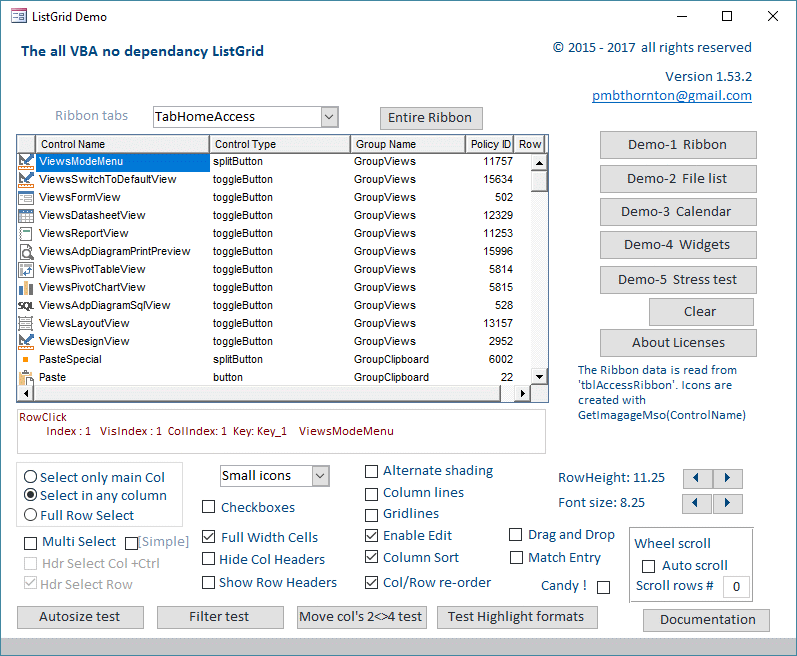
Our new ListGrid combines most of the functionality of the ActiveX Listview and Flexgrid controls with many extra useful features. It is the result of extensive beta testing by some of our treeview users, thanks guys!
The screenshot of the demo below gives an idea of just some of its capability.
The Pro Treeview and ListGrid are available for 32/64 bit Excel and Access. The Excel version will also work in Mac, one or two features are disabled for Mac but we're working on it. Unlike our free treeview they are self contained in their own files and designed to work more like real controls.
For more details and if interested in a trial license to try either of these 'controls' please contact us:
Please note that the pro versions are paid versions. Pricing available upon request by using the links above (The download files above contain a Word document which also gives more details about the pro controls).
Frequently asked questions
Why use an all-VBA Rich Text Box?
How are separately formatted runs displayed?
Which class modules must I import?
How do I attach the control to a UserForm?
Which markup tags are supported?
How do text and markup editing work?
Comments