
An all-VBA formatted ListBox control for Excel, Word and Access
Content
- Introduction
- Download
- ListBox features
- Files to import
- Add the control to a UserForm
- How character formatting works
- Columns and bound values
- Selection and keyboard control
- Resizing and cleanup
- Compatibility
- Disclaimer
- Other controls
- Frequently asked questions
Introduction
The built-in MSForms ListBox is fast and convenient, but it you cannot
have different font or color settings for individual characters in a list
item. This all-VBA ListBox-style control gives you that capability while
retaining familiar properties such as ListIndex, List,
Selected, ColumnCount, BoundColumn
and MultiSelect.
The control is built within a standard MSForms Frame control placed on a UserForm. It uses standard MSForms labels and text boxes at run time.
Here is a screen-shot of a small dialog in my RefTreeAnalyser add-in which uses this new control:
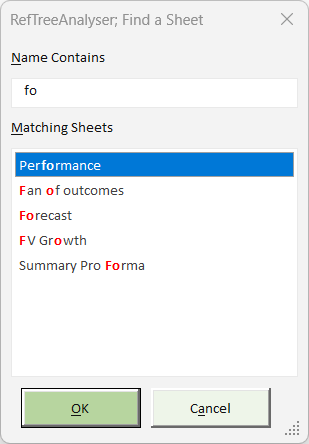
Notice how the "Name contains" characters are bolded and have a red font in each worksheet's name.
Download
Download Formatted Listbox Excel file (including documentation) Build 1.2, 16 Oct 2026.
ListBox features
- Per character you can set font name, size, bold, italic, underline, strikethrough, weight and charset.
- Per character you can set foreground and background colors.
- It has Single, Multi and Extended selection modes.
- Supports Ctrl-click and Shift-click range selection.
- Supports Arrow, Home, End, Page Up, Page Down, Space and Enter keyboard handling.
- It has multiple columns, zero-width hidden columns and bound values.
- Features automatic horizontal and vertical Frame scrollbars.
- Explicit cleanup of all dynamically created controls.
Files to import
The complete reusable control consists of three class modules:
clsFormattedListBox.cls: The main class, which is the controller offering a familiar ListBox API.clsFormattedListItem.cls: The class that handles each list item. It contains one row of values, and handles formatting and run-time controls.clsFormattedCharacters.cls: The class that handles the character-range formatting.
Add the control to a UserForm
Add an MSForms Frame named frmList (or use any other convenient
control name of course) to your UserForm. Leave its caption empty and set
its initial ScrollBars property to None. Set its Font to the font you want
to serve as default for all controls in the list box. Then add the following
code to the form:
Private WithEvents mList As clsFormattedListBox
Private Sub UserForm_Initialize()
Set mList = New clsFormattedListBox
With mList
.BeginUpdate
Set .HostFrame = Me.frmList
.ColumnCount = 2
.ColumnWidths = "180;0"
.BoundColumn = 2
.MultiSelect = fmMultiSelectExtended
.AddItem "First item"
.List(0, 1) = "item-key-1"
.EndUpdate
End With
End Sub
Of course the lines starting with .AddItem and .List(0, 1) are there for demonstration only, I leave it up to you to replace them with relevant code that adds the list.
How character formatting works
Each logical list item is represented by one clsFormattedListItem
instance. A visible cell is divided into contiguous characters that share
the same formatting. Each set of characters is drawn as a separate label.
The control applies the character set's font settings, sets the label's
AutoSize property to true, reads its resulting width and places
the next set of characters directly beside it. This follows the same technique
as our all-VBA TreeView.
Characters uses a 1-based start position and length, like
Excel's Characters object. Rows and columns use the native ListBox-style
0-based indexes. Here is some example code that deomstrates how you might
change the font characteristics of some characters of a list item:
Dim oCharacters As clsFormattedCharacters
Set oItem = mList.AddItem("Sheet 1")
Set oCharacters = oItem.Characters(2, 1)
oCharacters.Bold = True
oCharacters.ForeColor = RGB(192, 0, 0)
Set oCharacters = oItem.Characters(5, 1)
oCharacters.Bold = True
Adjacent characters with identical settings are rendered as one label.
Columns and bound values
Set ColumnCount before adding values. ColumnWidths
is a semicolon-separated list measured in points; use zero to hide a data
column. BoundColumn is 1-based, matching MSForms. A BoundColumn
of zero returns the row index instead of the content of one of the list
row columns.
mList.ColumnWidths = "180;0"
mList.BoundColumn = 2
mList.List(0, 1) = "hidden-value"
Debug.Print mList.Value
Selection and keyboard control
The MultiSelect property accepts the built-in MSForms constants
fmMultiSelectSingle, fmMultiSelectMulti and
fmMultiSelectExtended. Use Selected(row) to inspect
or change an item's selection state.
Debug.Print Index, mList.Value
End Sub
Private Sub mList_DblClick(ByVal Index As Long)
Unload Me
End Sub
The control also raises Change, KeyDown and
KeyUp events. The focused row is kept visible while the user
moves through the list.
Resizing and cleanup
Call Resize after changing the host Frame's dimensions.
Call Terminate when the UserForm is destroyed so all generated
controls are properly removed.
If Not mList Is Nothing Then mList.Resize
End Sub
Private Sub UserForm_Terminate()
If Not mList Is Nothing Then mList.Terminate
Set mList = Nothing
End Sub
The Frame supports scrolling. Mouse-wheel behavior must be supplied by your own project and is deliberately not included in the three-class bundle.
Compatibility
The control contains no Windows API declarations and no Excel object-model dependency. It is designed for MSForms projects, including 32-bit and 64-bit Office. It is up to you to check behavior in each Office host and Mac version required by your own deployment before distribution.
Disclaimer
You use this control at your own risk. JKP Application Development Services accepts no liability for damages arising from its use. Test the control thoroughly in every Office host and platform supported by your project.
Other controls
Treeview control
We also offer a free treeview control
Rich Text Box Control
Using the ideas of this Rich Text box control I alos built an all-VBA Rich Text Box control.
'Pro' Treeview and ListGrid VBA controls
If your project needs more features and/or better performance than our free treeview, or if you need a professional listgrid control you've come to the right place as well.
The professional version of the treeview control has exceptional performance. Even with tens of thousands of nodes it will load quickly and remain highly responsive. It also has several new features including drag and drop. Timing experiments have shown that the pro version of our treeview outperforms the common controls treeview.
Our new ListGrid combines most of the functionality of the ActiveX Listview and Flexgrid controls with many extra useful features. It is the result of extensive beta testing by some of our treeview users, thanks guys!
The screenshot of the demo below gives an idea of just some of its capability.
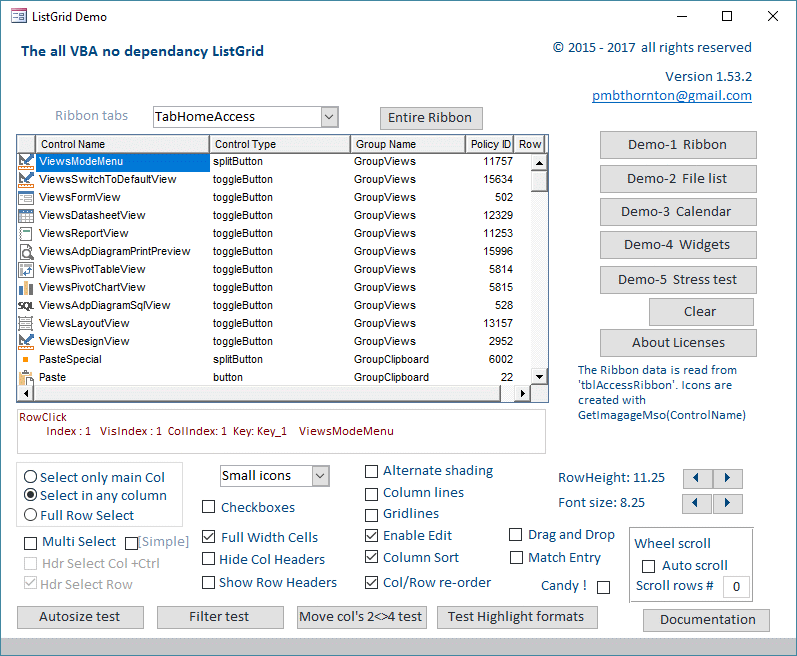
The Pro Treeview and ListGrid are available for 32/64 bit Excel and Access. The Excel version will also work in Mac, one or two features are disabled for Mac but we're working on it. Unlike our free treeview they are self contained in their own files and designed to work more like real controls.
For more details and if interested in a trial license to try either of these 'controls' please contact us:
Please note that the pro versions are paid versions. Pricing available upon request by using the links above (The download files above contain a Word document which also gives more details about the pro controls).
Frequently asked questions
Why use a custom formatted VBA ListBox?
How can separate characters use different formatting?
Which class modules must I import?
How do I attach the control to a UserForm?
How do I make found characters bold?
Comments