
RefTreeAnalyser: Visual Tour
Pages in this article
- Why RefTreeAnalyser?
- Screenshots of RefTreeAnalyser
- Version information
- Quick Operating instructions
- Full help
See how the tracing windows and worksheet reports support a workbook review. For a first walkthrough, use the getting-started guide.
- Trace formulas
- Inspect object references
- Investigate circular references
- Review workbook findings
- Compare formulas
- Document workbook structure
- Investigate calculation time
Trace a formula's inputs and outputs

The tree lists references alongside their values. Red entries indicate a range containing an error value. Click a reference to select the corresponding range in Excel. Reference-tree instructions.
Show precedents on the worksheet
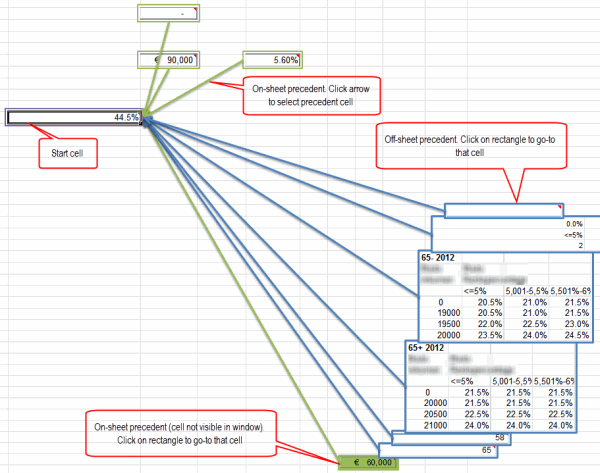
Visualize Precedents displays the relationships on the worksheet. On Mac, previews of ranges from other sheets remain blank. Visualize instructions.
Inspect dependencies involving objects
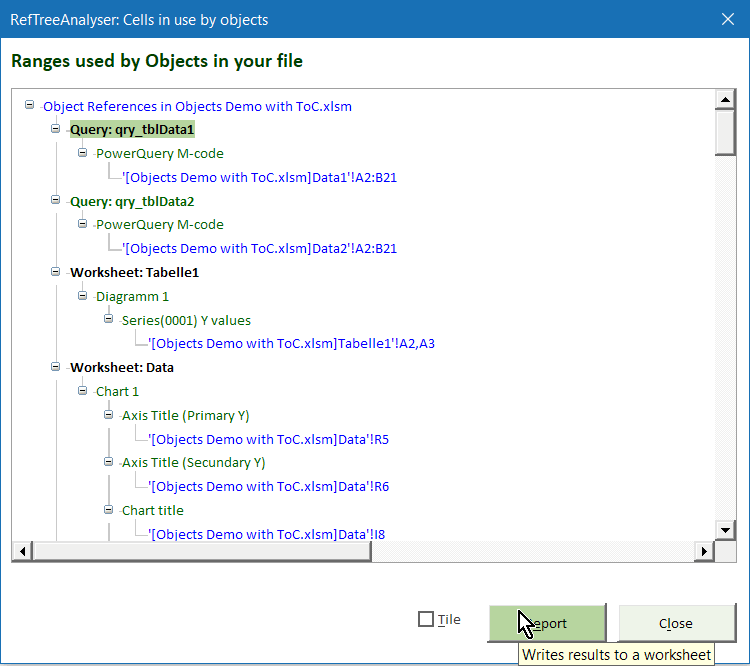
Inspect relationships involving objects such as charts, PivotTables and controls, as well as formulas in data validation and conditional formatting. Object-reference instructions.
Follow circular-reference chains
Excel for Windows only.
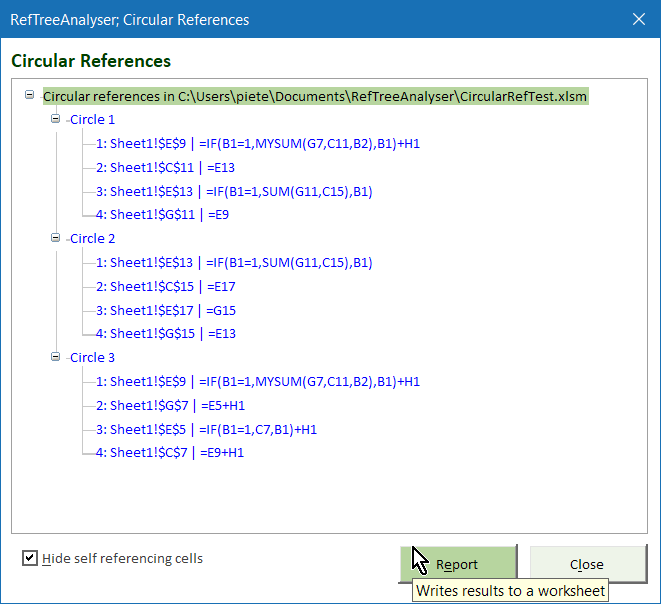
Navigate the chains to investigate where a calculation refers back to itself. Circular-reference instructions.
Review workbook findings

Audit Workbook brings formula, rule and linked-file findings into a worksheet report. Review warnings need interpretation; they are not automatically confirmed errors. The command reports findings without automatically repairing the flagged formulas or rules. Audit scope and interpretation.
Review added, changed and removed formulas

Save formulas before a revision, storing the snapshot in the workbook or in a separate Excel workbook.

Compare the current formulas with a previous snapshot, or compare two snapshots. Matching is by worksheet and cell address: structural edits can make shifted formulas appear as removals and additions. Calculated values and other workbook objects are not compared. Snapshot and comparison instructions.
Document workbook structure
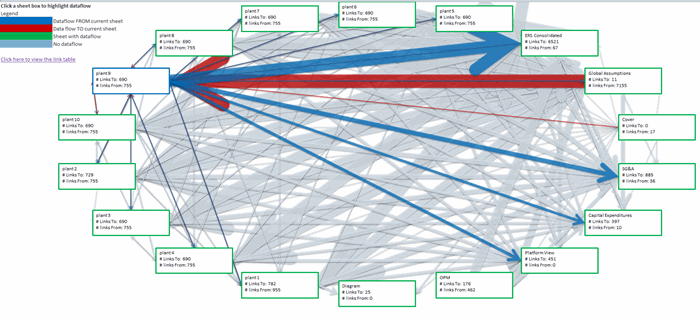
The inter-sheet report gives an overview of worksheet dependencies. Select a sheet box for its details.
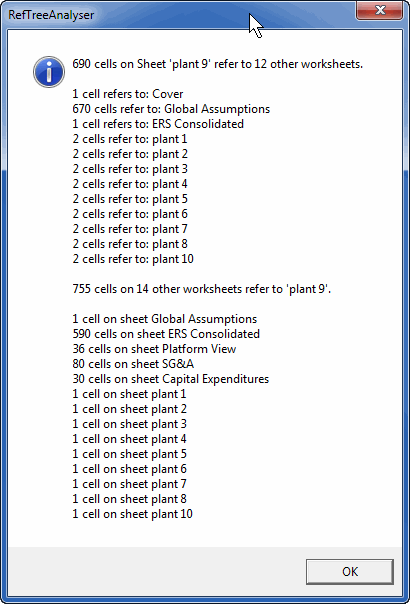

A table of contents provides links to the workbook elements you choose. Refresh it by running the command again. Table-of-contents instructions.
Summarize repeated formulas
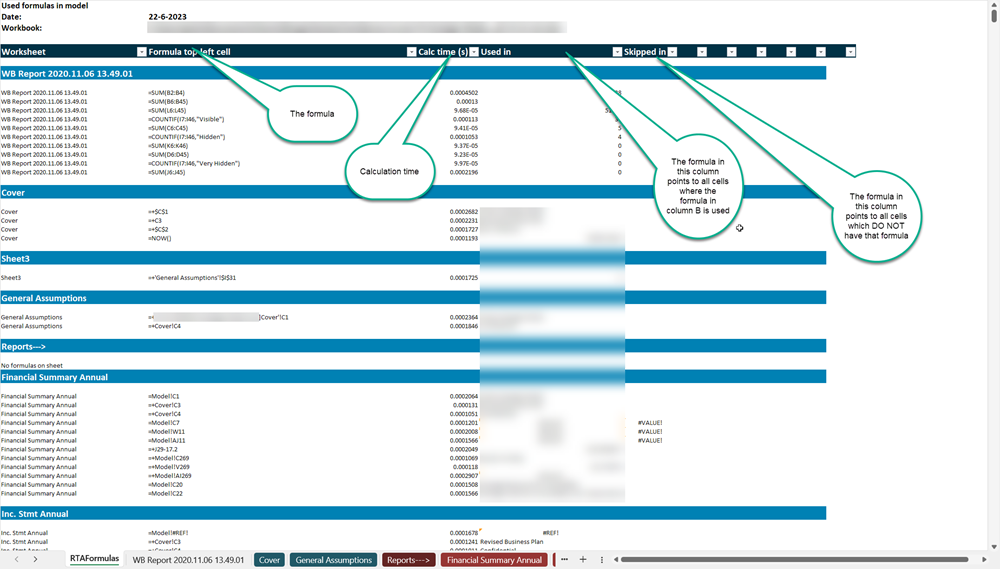
Review repeated formula patterns in one report rather than inspecting every copied cell. Formula Report instructions.
Investigate calculation time

Worksheet statistics help you choose where to investigate performance. Other open workbooks can affect timings. Statistics and timing guidance.
Try the tools
See demo restrictions and compatibility, or install the add-in and trace your first formula.


Reading the examples
The screenshots show example workbooks. The available features depend on your platform and license; your workbook's results will depend on its formulas, rules and objects. See the manual for command-specific limitations.
Comments