
RefTreeAnalyser Help
Using this manual
This manual explains RefTreeAnalyser's commands, settings, reports and limitations. For installation and a first formula trace, start with the getting-started guide. For product information and prices, see the overview.
Precedents are a formula's inputs; dependents are calculations or objects that use a cell. Use the sections below to investigate those relationships, review workbook issues, or document your findings.
Contents by task
Set up and start
- Installing RefTreeAnalyser
- Mac specific information
- Starting the tool
- Keyboard shortcuts
- Ribbon-policy issues
Trace and investigate
- Dependents/Precedents Window
- Visualize Precedents
- Tracing errors
- the Object References Window
- Working with the Circular Reference tool
- Display Equation
- Off-sheet references
- Highlight Cells
- Selecting cells
- Source cell(s)
- Clear Arrows
Audit and compare
Report, document and measure
- All sheets statistics
- Calculation time for a selection
- Formula report
- Report Function Counts
- Report UDF Counts
- Table of contents
Navigate and select
Configure and troubleshoot
- Settings
- License registration and demo mode
- Automatic updates
- Help
- About
- Feedback
- Companion add-ins
- General remarks about RefTreeAnalyser
- Comments
Installing RefTreeAnalyser
The Windows instructions and Mac instructions explain how to extract, open and install the add-in. Get the current download from the product page.
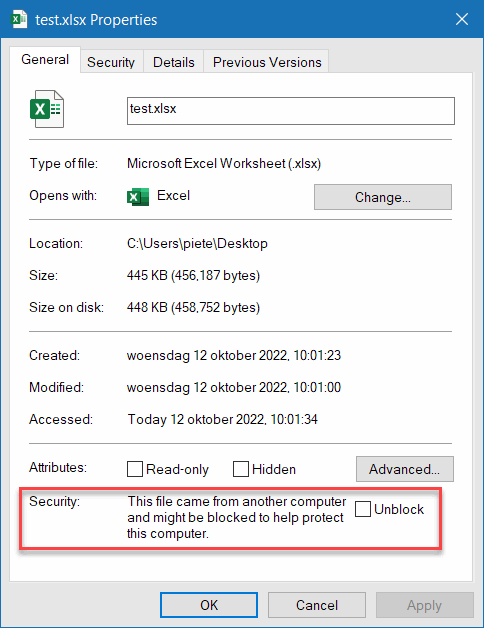
Windows file blocking
If Windows shows an Unblock checkbox in the downloaded zip file's Properties, check it before extraction. If the checkbox is absent, continue with extraction. Organizational security policy can still block macros; do not bypass it.
The installation prompt

Choose Yes to load RefTreeAnalyser whenever Excel starts. Choose No to use it only in the current session. If you decline installation, a second prompt asks whether to stop asking: choose Yes to suppress future installation prompts, or No to be asked again.
Mac specific information
What does not work on Mac Excel
Some items are not (yet) available for Mac users mostly due to lack of compatibility between Windows and Mac Excel:
- Tiling the Precedents/Dependents window beside Excel is unavailable.
- Circular-reference detection is unavailable.
- The Highlight Cells feature is unavailable.
- Visualize Precedents does not show previews of ranges on other worksheets; those boxes remain blank.
Automatic updates
RefTreeAnalyser will check for updates automatically once a week (if your update license has not expired yet).
You can manually check for updates too, just open Settings and click
the Update button:

You can turn off this weekly update check by unchecking "Check for updates"
Please note that a license entitles you to one year of free updates (the settings screen displays your expiration date). After that period, you are no longer entitled to receive updates, nor are you allowed to use later released versions of RefTreeAnalyser.
Starting the tool
To start the tool, you can use these options:
The Ribbon
By default, the tool adds a tab to your ribbon called RefTreeAnalyser:

If the tab is missing, see ribbon-policy issues and the getting-started checks. Note that Settings allows you to remove the RefTreeAnalyser tab and move the controls to the Formulas tab.
Hotkeys
The tool has these default hotkeys (they can be changed in Settings):
- Control + shift + [ : Find precedents. If the active cell is within a pivot table the tool will jump to the pivot table's source range.
- Control + shift + ] : Find dependents (or both if that has been selected).
- Control + shift + | : Find Circular references.
- Control + shift + # : Trace errors.
- Control + shift + ? : Visualize the precedents of the active cell on-sheet.
- Control + shift + O : Shows the Object references window.
- Control + shift + H : Shows the Check Formulas window.
- Control + Shift + N: Starts Name Manager (you can change this button from the ribbon, in the Name Manager group)
- Control + Shift + F: Starts FlexFind (you can change this button from the ribbon, in the FlexFind group)
Most of these hotkeys can also be used to return to the Analyzer dialogs after one has clicked in Excel. Circular-reference commands are available only in Excel for Windows.
Ribbon issues
Some companies disallow ribbon modifications by a group policy. RefTreeAnalyser
will detect that and propose to add its menu to the Add-ins tab of the ribbon:

Click Yes and you'll find (a part of) the menu on the add-ins tab:

Right click menu of RefTreeAnalyser
You can access most functionality of RefTreeAnalyser through the right-click
menu:

Change Shortcut Keys
RefTreeanalyser was designed to be easy to use with a keyboard. Its core functionality is accessible by keyboard shortcuts.
You can change the hotkeys from the Settings screen, which is available
from the ribbon, in the Help and Settings group:

Clicking that button opens this dialog:
You can change the hotkeys RefTreeAnalyser uses to access its core functionality.
Check a box if you want to combine a key with the Control or Alt key.
If you want to use Control + Shift to access a certain key, make sure you
hold down the shift key when you type the character you want to use.
For example, the default hotkey to start the Precedents search is control
+ shift + [.
Since shift + [ is actually the { character, simply type the { character
in the box and check the Ctrl check box.
Leave a box empty if you do not want to use a hotkey for that option.
Dependents/Precedents Window
After clicking Find Precedents, Find Dependents or Trace Errors, the
main window opens:
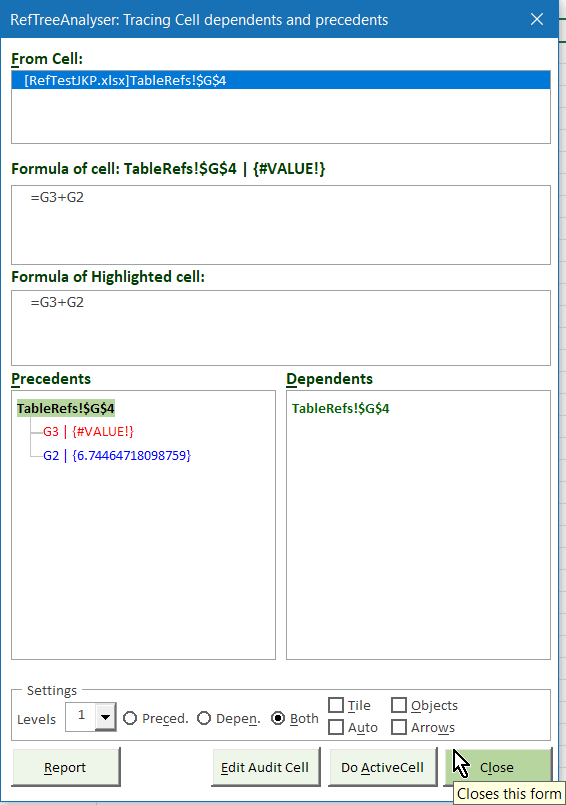
Note that if the active cell is within a pivot table the tool will jump to the pivot tables source range.
Description of the window elements
From Cell list
This list keeps track of what cells have been analyzed. Click any entry in this list to redo the analysis.
Change to small screen button
If you click this button:

The trace precedents window changes to this:

Use the left and right arrow keys to move the cursor to the next cell reference in the dialog and have the range selected on the grid. Of course you can also use you rmouse and click on the references.
Check the box at the bottom of the dialog to make this the default Trace precedents dialog. Uncheck to revert to the more elaborate version (Close the dialog and click the precedents button to have that take effect).
Formula of Cell
This box shows the formula of the analyzed cell. You can change the formula by editing in this box. Confirm your changes by hitting the TAB key.
Formula of Active Cell
This box shows the formula (or value) of the cell (or range name) that is currently highlighted in the tree view.
Precedents/Dependents Tree views
These two areas of the screen show you the reference structure. To navigate the tree, you can use the arrow keys:
- Down/Up arrow: selects each visible element one-by-one
- Right Arrow: If an element has child elements (indicated by a small plus-sign to its left) the element is expanded to show the children and the first child is selected.
- Left Arrow: If an element is a child element, the tree collapses to hide this element and the focus moves to the parent.
Other shortcut keys and mouse actions:
- 1, 2, 3: Collapse or expand the tree to that level
- +: Fully expand all levels
- -: Fully collapse

- Double-click a node: if the node points to a range, the top-left cell of that range will be analyzed
- Single-click a node: go to the cell reference
If an element in the tree is selected, the tool will update its screen and will try to activate the corresponding range in your file.
Note that the Precedents tree elements are normally blue, and the dependents
items are green. If an item is colored red it indicates that there is at
least one cell in that range which contains an error value. Objects are
indicated in black font. When a reference is a Name containing a formula,
RefTreeAnalyser will display the formula and automatically add the references
in the Name to the tree:

Levels dropdown
Use the levels dropdown to change how deep into the reference tree the
tool must search.
The licensed version has a maximum of 25 levels, the demo version is limited
to 1 level.
In Error tracing mode this dropdown is disabled. Object references are always
traced to a maximum of 1 level.
Prec. Depen. And Both
Use these option buttons to change what references need to be analyzed
by the tool.
In Error tracing mode these options are disabled.
Tile
If you check this box, RefTreeAnalyser will be tiled next to the main window of Excel.
Auto
Check this box if you want the Precedents/Dependents list to automatically update as you click on cells.
Objects
Check this box to include references to/from any objects in the precedents and dependents list, such as validation or conditional formatting formulas, list box source ranges, list box linked cells and etcetera. This box is unchecked by default because searching all possible objects may take a considerable amount of time for large and/or complex workbooks.
Arrows
If you check this box, RefTreeAnalyser will show the precedents and/or dependents arrows of the active cell.
Report
Creates a report in Excel of the current analysis results. Unavailable in the demo version.
Edit Audit Cell
Takes you to the audited cell and puts Excel into Edit mode.
Do Active Cell
Redoes the analysis starting from the currently selected cell.
Close
Closes the tool. The currently active cell is retained.
Note that hitting Escape will also take you back to excel, but with the
audited cell activated.

Stop
During lengthy analyses, the tool will show a progress screen with a Stop button. Click this button to abort the analysis. Note that it may take some time before the tool responds to that click.
Splitter bars
There are splitter bars between some screen elements, which is indicated
by a change in mouse pointer:

Drag with the mouse to change the relative size of the screen elements.
Visualize Precedents
RefTreeAnalyser also enables you to visualize the precedents of a cell on-sheet.
To enable this feature, simply click the "Visualize" button on the ribbon, or press control+shift+? (or the shortcut-key you have set-up yourself).
Rectangles will be drawn around the current cell (purple) and around
each cell on the same sheet that is a precedent to the current cell (green).
Precedents that are off-sheet are represented by a blue arrow and a small
picture of the range in question:
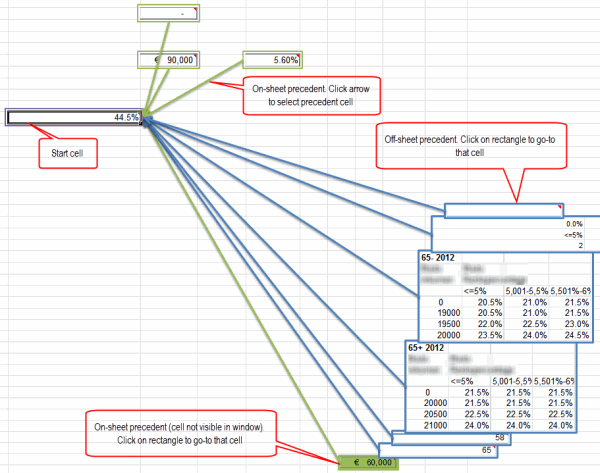
Click on a screenshot to take you to the relevant worksheet:

Click on the precedent area (indicated by a blue box around it) to take
you back:

If a cell is on the same sheet, but out of view, a screenshot of that
cell is shown with a green fill. Clicking on the screenshot will take you
to that cell:

The tool creates drawing objects on your worksheet which are named similar to "jkpRTA 12318718". Pressing the remove arrows button will remove all shapes from your worksheet which have a name that begins with jkpRTA. When you save your workbook, these objects are automatically removed by RfeTreeAnalyser.
Tracing errors
Use Trace Errors to investigate the inputs of a formula returning an error. To list error results across the workbook instead, use Report Errors.
In the error tracing mode, RefTreeAnalyser will keep tracing down the precedents tree, until it either finds a cell which has no precedents, or it finds a cell which has no error value.
This way, you can trace which cell(s) are the root cause of an error. The Trace Errors dialog works the same as the Precedents/Dependents screen.
The Object References Window
With this feature you can analyze all objects for cell dependencies.
RefTreeAnalyser searches these objects for cell references:
- Charts (SERIES formula, objects on the chart pointing to worksheet cells, data labels, and etcetera)
- Form and ActiveX objects (LinkedCell, ListSource)
- Drawing objects (Camera tool)
- Pivot tables (Source range)
- Validation formulas
- Conditional Formatting formulas
- Power Query queries
Click an entry in the window and RefTreeAnalyser will try to select the
object (or its source reference):
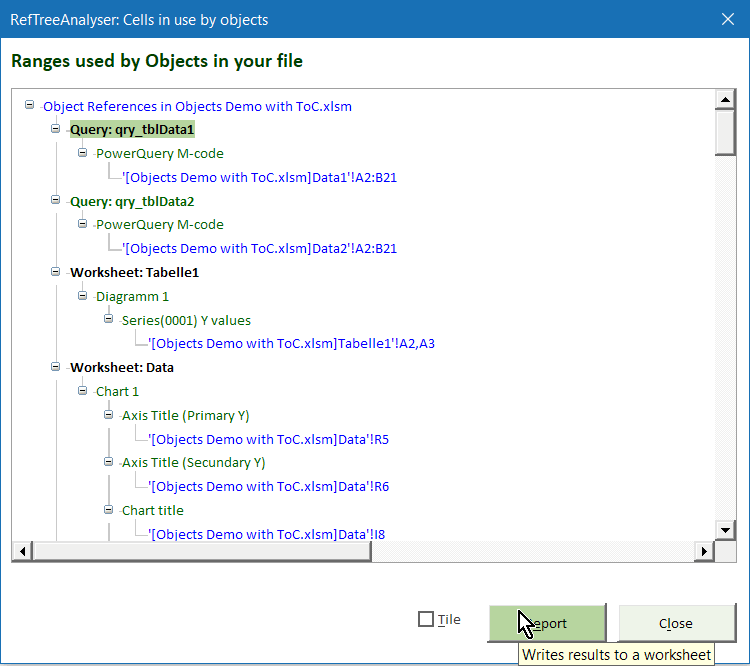
Should the tool encounter any errors during the analysis, then a red error bar (not shown in the screen above) will become visible. Click on the error bar to read the error messages.
Text entered in the Formula Contains box will filter the tree for objects containing that string in the reference. Enter something in that box (or clear the box). Press Enter or Tab to activate the filter.
Working with the Circular Reference tool
Excel for Windows only. Results depend on the calculation paths Excel currently evaluates. Read the limitations before interpreting the report as a complete list.
Main window
After clicking the Find Circular References button or menu entry, the
tool first shows a window to advise you to save a backup copy of your file:

If you want the tool to save a backup copy of your workbook, make sure
you check the box.
In addition, the tool offers an (experimental!) Thorough mode which will
parse all formulas to decide where the circular references are. This method
is experimental and may take a long time to complete. Even then, it may
produce incomplete results.
After clicking OK, the tool analyses your file for circular references
and then opens the Find Circular References window:
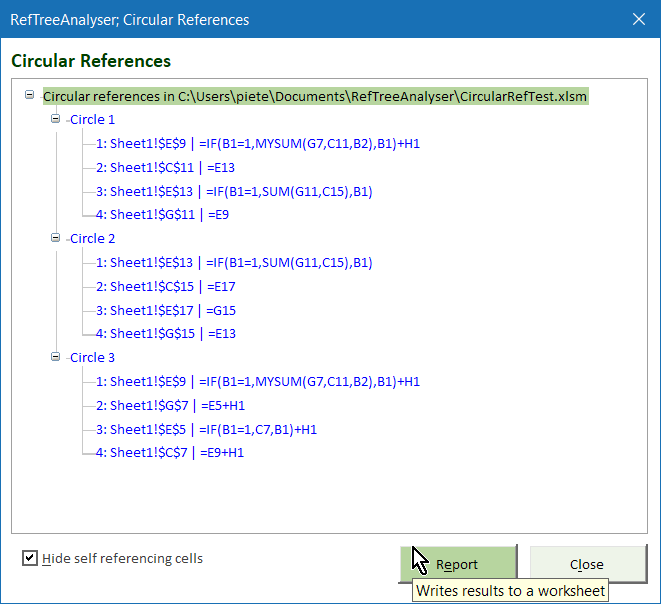
The demo version of the tool will show a maximum of 2 cells for each circle it has found.
Description of the window elements
Circular References Tree view
The circular references detected by the tool are shown in a tree view, where each circle has its own node. Each circle node contains the cell ranges that form the circular reference. To navigate the tree, you can use the arrow keys:
- Down/Up arrow: selects each visible element one-by-one
- Right Arrow: If an element has child elements (indicated by a small plus-sign to its left) the element is expanded to show the children and the first child is selected.
- Left Arrow: If an element is a child element, the tree collapses to hide this element and the focus moves to the parent.
If an element in the tree is selected, the tool will update its screen and
will try to activate the corresponding range in your file.
Hide self referencing cells checkbox
This box is checked by default and prevents the tool from reporting formulas
that refer to themselves, e.g. if you have this formula in cell A1:
=IF(B1="",A1,B1) cell A1 will be omitted from the list when the checkbox
is checked.
Report
Creates a report in Excel containing the current analysis results. Unavailable in the demo version.
Close
Closes the tool. The active cell is retained.
Remarks on The Circular Reference Tool
Limitations
Which circular references the tool will find may depend on the current values in your cells. For example, Excel is smart enough to detect whether the True or False portion of the IF function is currently valid. If the test clause of the IF function evaluates to TRUE, only the TRUE part of the IF function counts as a reference, the FALSE part is completely ignored.
Multiple workbooks
As soon as two or maybe more workbooks are open in Excel, finding Circular references may be skewed. This is why the tool will issue a warning to close all workbooks except the one to be examined. If multiple workbooks together form the circular reference, the tool will work as expected. The heading in the tree view will show the name of workbook which was active when the tool was started.
Display Equation
Formulas can be quite complex and RefTreeAnalyser has a feature that
may help to figure out how your formula works.
It will try to display your current formula as a mathematical equation.
Example: Suppose you have this formula in your cell:
=MAX(ROUNDUP(($X$585-($X$584-$AB$577*$AA$588))/$AA$588/$X$576,0),0)
Pressing "Display Equation" yields this picture:

Off-sheet references
RefTreeAnalyser offers a report displaying the relations between your
worksheets. This report counts the cells on worksheet A pointing to worksheet
B. After gathering those counts the worksheets are drawn on a report sheet
with arrows indicating which sheets get data from which other sheets:
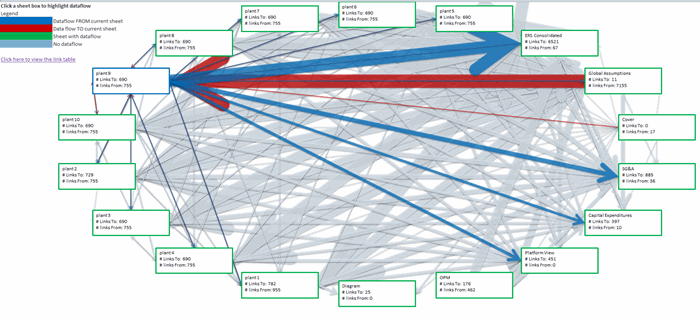
Each worksheet box can be clicked to display to which other sheets it
links and vice versa:
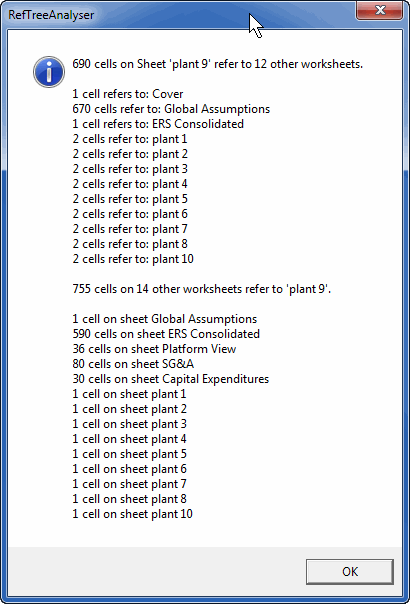
The numbers in the above dialog are clickable and take you to the cells
in question. The following dialog pops up, allowing you to quickly navigate
those cells:

Also, underneath the visualization a table with all counts is included:

Check Formulas
By pressing this button (default shortcut key: control+shift+H) you can have RefTreeanalyser analyze the formulas in your selection.
This is useful if you want to check whether a range of cells contains any formulas which differ from the adjacent cells.
The tool will generate a list of all unique formulas in the selected cells.
If you have just one cell selected, then the tool will analyze the active column.
A formula is deemed unique if it cannot be achieved by copying another cell.
All unique formulas are then shown in this dialog:

Use the previous and next buttons or click on the list to select the cells which share the same formula. You can of course also use the arrow keys when the list box is the active control of the form.
Any formula that is found in more than one contiguous area is highlighted in red and that node of the tree is expanded to show the individual areas of the range containing the formula.
Use the "References" button to analyze the selected cell's precedents/dependents.
The "Highlight" button draws rectangles around all areas shown in the
dialog, thus making it easier to visually inspect your sheet for inconsistencies:

As you can see, cells B14:B15, D14:D15 and E15:E16 seem to have a different
formula than expected.
Highlight Cells
The Highlight cells button allows you to move your mouse over a worksheet. RefTreeAnalyser then highlights all cells containing the same formula. Press the Escape key on your keyboard to get out of this mode.
Selecting cells
There are several types of cells you can ask RefTreeAnalyser to select:
Cells with dependents
Highlights all cells that have dependents.
Empty cells with dependents
Highlights all empty cells that have dependents.
Cells with hard-coded numbers
Highlights all cells that have a formula containing hard-coded numbers.
Cells with the same formula
Use this button to select all cells on the current worksheet, which share the same formula as the active cell (as if you've copied the current cell to other cells).
Source cells
Select a formula cell, then choose Source cell(s) to select the range identified as the source of that formula's result. For example, with an XLOOKUP formula this selects the return range or cell. Note that this is not the same as selecting every precedent in the formula's dependency tree!
Clear Arrows
Deletes any arrows and/or other shapes added to your workbook by RefTreeAnalyser. These are also deleted if you save your workbook.
All sheets statistics
Gathers statistics about the worksheets in the active workbook. It will
generate a worksheet like this:

Please note that calculation times may be affected by other files you have open in Excel. For accurate results, make sure the file you want to analyze is the only file open in Excel.
Calculation time for a selection
Calc time of selection recalculates the selected cells and reports the elapsed time. If the selection is part of an array formula, Excel recalculates the containing array formula. Use this to time a particular calculation; it is distinct from timing a whole workbook or each worksheet. Results depend on the workbook and Excel's current state, including other open workbooks.
Formula report
The Formula Report button generates a worksheet with all unique formulas in your workbook. A unique formula is a formula that has not been duplicated anywhere in the worksheet by means of a copy/paste operation. RefTreeAnalyser also reports the total time taken by calculating all cells with that formula.
Report Function Counts
The Report Function Count option generates a list of how many times all built-in Excel functions are used within your current Excel file. The list is sorted in descending order of the times a function has been found.
Report UDF Counts
The Report UDF Counts option generates a list of how many times User-defined functions and LAMBDA functions are used within your current Excel file. The list is sorted in descending order of the times a function has been found.
Report Errors
Choose Report Errors to scan formula cells throughout the active workbook and create a worksheet listing each formula cell that returns an error, with its worksheet, address, error type, formula, and a link to the cell. This is an inventory of error results; Trace Errors follows precedents to help investigate a cause. In the demo version, the report is limited to 21 error cells.
Save formulas for later comparison
Use Save Formulas to capture the formulas in the active workbook before making revisions. You choose whether to store the snapshot on a worksheet in that workbook or in a separate Excel workbook. Snapshot creation is on-demand only; RefTreeAnalyser does not scan or save a baseline automatically.

Compare formulas
After revising the workbook, choose Compare Formulas to compare the current formulas with a saved snapshot, or compare two saved snapshots. RefTreeAnalyser creates a separate worksheet reporting added, changed, and removed formulas, along with worksheets that were added, removed, or renamed.

The comparison matches formula cells by worksheet and address. It does not reconstruct inserted or deleted rows or columns, so formulas shifted by structural edits may appear as removed and added entries. Snapshots compare formulas only, not calculated values or other workbook objects.

Audit Workbook
Audit Workbook creates a worksheet report for the active workbook. It checks formula errors and inconsistencies, data-validation and conditional-formatting rules, and external links to other workbooks. Findings include technical issues and review warnings that require your judgment; an unusual rule is not necessarily a defect.
- Activate the workbook you want to review and choose Audit Workbook.
- Allow the scan to finish, responding to worksheet-protection prompts if necessary.
- Review each finding's affected range, evidence and reason in the report worksheet. Follow its cell link to investigate the source.

The audit can identify broken references, empty or unresolved data validation rule sources and bounds where a simple range or name can be resolved, inverted numeric bounds. It also checks your conditional formatting rules for things like non-monotonic three-color scales. It also reports workbook links whose files are missing or inaccessible.
Review warnings include disconnected rule areas, partial table-column coverage, adjacent static data that may belong to a rule range, and locked or mixed-locking cells with data validation. Check the evidence and decide whether the rule is intentionally set up that way. The audit creates a report; it does not automatically repair the flagged formulas or rules, or establish whether the workbook's business logic is correct.
For protected worksheets, RefTreeAnalyser tries an empty password and a previously successful password before prompting you when necessary. It restores the original protection settings after scanning. Cancelling a password prompt or stopping the scan produces an incomplete audit report.
Table of contents
After clicking Table Of Contents (ToC), you get asked which elements
you want included in your ToC:

The list only includes items actually in your active workbook, if your workbook doesn't have pivot tables or charts, those will not be in this list.
The tool generates a sheet like this one:

This table of contents is static, but you can update it by clicking that same button again. Any remarks entered into in the Remarks column with the same object name will be retained. Note that you may lose a comment if you have renamed an object.
Find a Sheet
If you've ever worked with a workbook with many sheets, you probably know how tedious navigating the sheets can be. In comes Find A Sheet. A tiny dialog listing all your workbook's worksheets, with an extra perk: type-to-filter. You simply type some characters and the list gets filtered to every sheet which has that string somewhere in its name.

Find a Style
The Find a Style button opens the Style Picker dialog:
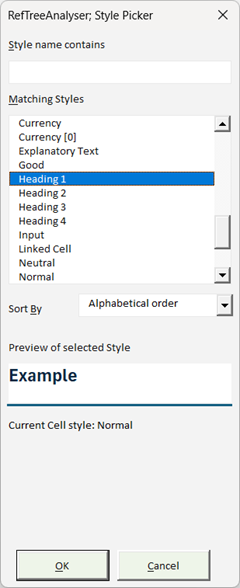
The style picker allows you to filter the list of styles by typing in
the top box. The picker matches each character anywhere in the style name,
in the order in which it appears. For example, ad matches Heading
1, and h1 matches Heading 1.
The Sort By drop-down has two choices:
- Alphabetical order (styles sorted alphabetically by name)
- Closest Match (styles sorted by how close the style matches the current cell's appearance)
If you select a style in the list, the Example updates to show you a preview of what that style looks like.
Press Enter to apply the selected style to the selected cells, Escape cancels the dialog.
Track Sheets And Tables
Check this box to enable the two drop-downs beneath it. If your workbook is very large, this feature may slow Excel down a little, so you may want to uncheck it in such a case.
Sheets
This drop-down shows the name of the active sheet. You can use the drop-down to navigate to other worksheets in the workbook.
Tables
This drop-down shows the name of the active Table. You can use the drop-down to navigate to other tables in the workbook.
Settings
The settings screen is available from the ribbon (in the Help & Settings group).
Clicking the Settings button opens this dialog:
License Registration
Without a license key, RefTreeAnalyser runs in demo mode. Most functions are available, but command-specific restrictions apply: for example, dependency tracing is limited to one level and Report Errors lists up to 21 error cells. The Settings screen opens periodically for unlicensed users. See prices and license terms if you want to purchase a key.
After receiving your license key, please click the Settings button. Paste the license code that you received and enter your name in the appropriate box.
After that, press the Validate button (make sure you are connected to the internet). After the registration code has been successfully validated, your add-in will be fully functional.
A standard license includes perpetual use on two computers and one year of updates. When your update entitlement ends, you can continue using the last version covered by your license; you are not entitled to later releases without renewed update coverage.
Keep a backup of your eligible version. The website download may be newer than your license permits, and that release will not activate under the expired update entitlement.
Shortcut keys
You can change the hotkeys RefTreeAnalyser uses to access its core functionality.
If you want to use control+shift to access a certain key, make sure you
hold down the shift key when you type the character you want to use.
For example, the default hotkey to start the Precedents search is control+shift+[.
Since shift+[ is actually the { character, the { character is in the Key
box.
Reference display method
Show references only once
By default, this feature is turned off. If you have a formula in which a reference appears more than once, such as =A1+A1+A1, RefTreeAnalyser will show each A1 as a separate entry in the tree:

If you check this box, RefTreeAnalyser will show each unique reference
only once:

Show cell values in tree
Uncheck the box if you do not want the display of values in the reference
tree:

Reference level default
Enter the number of levels you want the precedents and dependents dialog to default to (default value=1).
Visualization colors
Use this option to change the colors of the arrows drawn on sheet
Ribbon position
By default the commands are shown on a separate RefTreeAnalyser tab. You can choose to have the controls moved to the Formulas tab. For organizations that block ribbon customization, see ribbon-policy issues.
Dialogs
By default, RefTreeAnalyser remembers the position of the dialogs. But if you work on a two-monitor setup and sometimes on a single monitor setup, the dialogs may not show (they 'appear' off-screen). Click this button to reset the form positions.
Updates
Check the box to have RefTreeAnalyser check for updates once a week.
If you prefer to check for updates manually, uncheck this box and press
the Update button to manually check whether any updates are available. Uncheck
this option if your entitlement to free updates has expired.
Note that the button will only work as long as your entitlement to free updates is valid.
Also note, that as of version 4.0, RefTreeAnalyser will also check for updates for the Name Manager and FlexFind add-ins.
Sheets
RefTreeAnalyser can automatically unhide and unprotect worksheets when needed; use these checkboxes to control that behavior.
If you click on any of the report buttons, RefTreeAnalyser checks whether that report sheet already exists. This setting affects what happens. When the report sheet in question already exists, the setting:
Replace Old Report sheets
Replaces the content of the existing sheet
Keep old report sheets
The existing report sheets are renamed by appending a number and a new report
sheet is inserted.
Animate Selection check box
When checked, RefTreeAnalyser will animate the selection to make it easier to locate the currently selected range of cells (checked by default).
Language
Choose the display language for RefTreeAnalyser. Currently, these languages are available:
- English
- German
- Dutch
- French
If you'd like to help to add your language of choice, please contact me.
Help
The Help button is a drop-down menu with these self-explanatory options:

About
Displays information about RefTreeAnalyser, such as the version and build
number:

Feedback
If there is anything you would like to share with the developer of RefTreeAnalyser,
please do not hesitate to press the Feedback button:

The button will take you to an on-line feedback form.
Companion add-ins
As of version 4.0, RefTreeAnalyser comes with two companion add-ins, Name Manager and FlexFind. My website has more information about both of them:
You will find their buttons on RefTreeAnalyser ribbon. Instructions about their use are available by using the Help drop-down of the RefTreeAnalyser tab.
Note that these two add-ins will automatically be downloaded when you click on their buttons.
General remarks about RefTreeAnalyser
Workbook and worksheet protection and visibility
In order for RefTreeAnalyser to work properly, your workbooks and worksheets must be visible and unprotected.
Every time you launch the tool to detect precedents or dependents, it will:
- Unhide all worksheets.
- Try to unprotect all workbooks and worksheets (prompting for the password if needed).
And as soon as you close the dialog the tool will:
- Hide all worksheets that were hidden
- Protect all worksheets and workbooks that were protected (using the original password)
You can turn this behavior on and off in Settings.
Windows not staying in place or not visible
Workbook in full screen mode
If your active workbook is displayed full-screen RefTreeAnalyser will detect if any resizable window displays outside of your current display dimensions. If that is the case, it will reset the position of the form to the center of the workbook window.
Workbook not full screen
If a screen is too far away from the workbook window edge, it will reset the position to the center of the workbook window.
Performance issues
Some people report issues with the performance of RefTreeAnalyser in Excel 2013 and up. It seems these issues may be caused by display driver settings.
Common questions
Did stopping an audit complete the review?
No. Stopping the scan or cancelling a worksheet-password prompt produces an incomplete report. Review its status before relying on the findings.
Can formula comparison track cells moved by inserted rows?
No. It matches worksheet and address, not the history of cell moves. Shifted formulas may appear as removed and added entries.
Where can I find a command's restrictions?
Use the contents by task to find its section. Platform restrictions are summarized under Mac information; demo and update terms are described under license registration.
Comments