XML and Excel
XML in Excel
Let's get a bit more practical and use Excel to do something with XML files. With Excel 2003/2007 importing XML data is very simple. Unfortunately, the XML facilities are only available in Excel 2007 and in the Microsoft Office Professional or ultimate versions of Excel 2003, or when Excel 2003 is bought as a standalone package. When you select File (Office button in Excel 2007), Open from Excel, then you will see xml file types are shown along with the available Excel files:
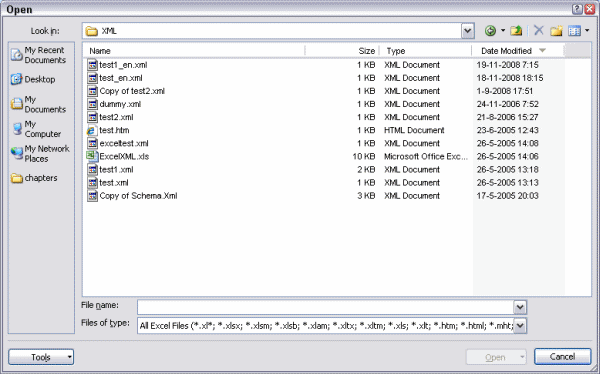
Figure 2: The File, Open window of Excel 2007.
Selecting the file test-en.xml causes a small window to appear (see figure 3).
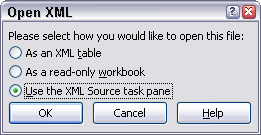
Figure 3: Excel asking what to do with the XML file
By selecting the third option Excel will analyse the structure of the XML file and present the structure in the taskpane (figure 4). Excel does not open the XML file at this moment.
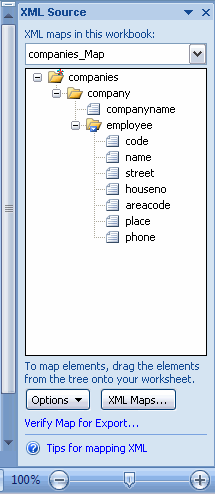
Figure 4, The structure of the xml file shows up in the taskpane
The elements of the XML file can now be tied to cells on the sheet, simply by dragging them from the task pane to a cell in Excel. See Figure 5 and 6.
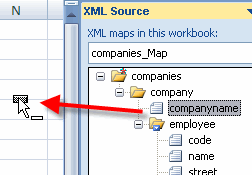
Figure 5: Dragging an element to an Excel cell
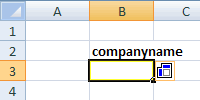
Figure 6: Result after dropping the element
By dragging an element which contains multiple other elements (or by selecting multiple elements in the taskpane using control+click or shift+click) all elements are placed next to each other as a list:(see figure 7).

Figure 7: List produced by dragging the "employee" element to the sheet
Now a template has been defined which can import data from XML files which have the same structure as the one we "opened" in Excel. We can import the data from test_en.xml, simply by pressing the refresh button on the "External Table Data" group of the custom "Table tools, design" tab of the ribbon in Excel 2007, or by clicking the Refresh XML data button on the List toolbar of Excel 2003 (see figure 8 and 9). The data from test_en.xml will be read into our newly created template. See figure 10.
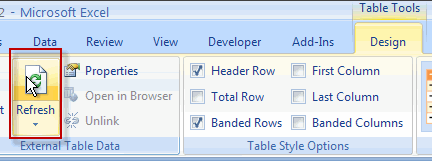
Figure 8: Refresh Data using the ribbon
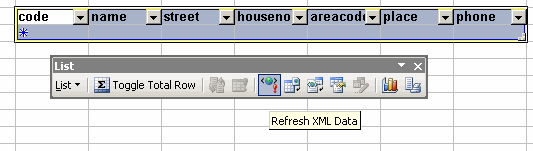
Figure 9: Button "Refresh XML data"on the "List" toolbar
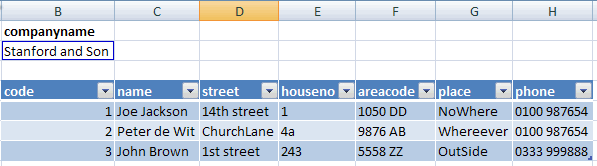
Figure 10: Result of importing the data
To import a different file into the same structure, use the connection properties dialog, which you can access by clicking the dropdown arrow below the refresh button (see figure 11):
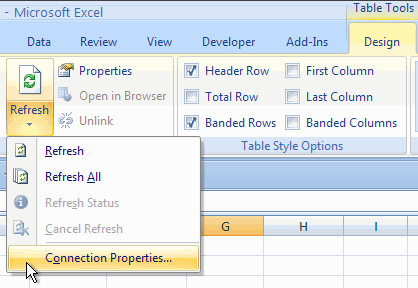
Figure 11: Changing connection properties to Import another XML file into Excel
After clicking connection properties, click the Details tab on the dialog that shows up and you can hit the browse button to access a different XML file. Or -in Excel 2003- Simply press the "Import XML" button on the List toolbar.



Comments
All comments about this page:
Comment by: Paul Roewer (3/10/2009 12:07:47 PM)I defined an excel workbook as you have described above. What I need is to have the xml data refresh (reloaded) whenever the excel file is opened. However, the External Table Data connection properties are all grayed out so I cannot choose the "Refresh data when opening the file" option. Any idea why this is happing?
Comment by: Jan Karel Pieterse (3/10/2009 10:23:10 PM)Hi Paul,
You do have a cell inside the table selected?
Comment by: Paul Roewer (3/11/2009 7:28:18 AM)Thank you for the quick response. Yes... I've tried selecting both the column heading cell and a cell within the column, but neither one enables the External Table Data connection properties settings. I've tried it both in the DATA tab as well as the DESIGN tab. Same results. I'm assuming this should work for both a macro-enabled workbook as well as a macro-enabled template? I've tried both, but still nothing. Clicking the REFRESH ALL button does reload the XML data, but as I stated, I want to have it reloaded when I open the excel file.
Comment by: Jan Karel Pieterse (3/12/2009 2:58:03 AM)Hi Paul,
Odd that it does not work, it works fine for me. How did you tie the xml to the worksheet, what option did you select on the very first step after clicking Open?
Comment by: Paul Roewer (3/12/2009 10:55:01 PM)- I created a new blank workbook
- I selected a cell
- From the DATA tab -> Get External Data section, I chose "From Other Sources/From XML Data Import"
- I selected an XML file I had generated from a DataTable:
<?xml version="1.0" standalone="yes"?>
<NewDataSet>
<ADDRESS>
<Address_ID>1</Address_ID>
<ADDRESS>240 Green Acres Drive abc123</ADDRESS>
<City>Austin </City>
</ADDRESS>
<ADDRESS>
<Address_ID>2</Address_ID>
<ADDRESS>Murphy Texas</ADDRESS>
<City>Tyler </City>
</ADDRESS>
<ADDRESS>
<Address_ID>3</Address_ID>
<ADDRESS>Homeaabb</ADDRESS>
<City>Sachse </City>
</ADDRESS>
</NewDataSet>
- I accepted all the default property settings.
- Select a cell inside the table in the spreadsheet.
At this point the CONNECTION PROPERTIES under both the DESIGN and DATA Refresh tabs are grayed out.
If I modify the external XML file, save, close, and reopen the excel file, it does not refresh the table.
Comment by: Jan Karel Pieterse (3/13/2009 2:14:25 AM)Hi Paul,
I just used your xml and did the same as you mentioned and the properties button is available.
Is this in a new workbook or in an existing one?
Comment by: John (3/16/2009 10:53:26 PM)Is it possible to set the cell attribute(for eg., bg color) from the XML source?
Comment by: Jan Karel Pieterse (3/17/2009 7:19:50 AM)H John,
No, not related to the subject of this particular article, which is about xml files in general.
You can however change any attribute of an Excel file inside the new Excel 2007 file format, which is a zipped container of xml files. See some pointers at:
www.jkp-ads.com/Articles/Excel2007FileFormat.asp
Comment by: Jack (6/12/2009 8:13:43 AM)Hi,
I'm trying to write some VBA code in Excel that will give a user the option to import an XML file into a spreadsheet once the file has been saved. Usually, a user would just need to click on the menu "Data" then select the option "XML" and then import to find the file themselves and import it in. I'm trying to put these steps into a macro but I do not know how to code this.
Any help much appreciated, I am using Excel 2003.
Best,
Jack
Comment by: Jan Karel Pieterse (6/14/2009 9:20:36 PM)Hi Jack,
The easiest way to get your first bit of code is by recording a macro when you do the import.
you would get something similar to this:
'
' Macro1 Macro
' Macro recorded 15-6-2009 by Jan Karel Pieterse
'
'
ActiveWorkbook.XmlMaps("XMLMap").Import URL:= _
"C:\data\YourFile.xml"
End Sub
Comment by: Suresh (6/24/2009 3:26:37 AM)Hi,
I have created the excel template in 2003 and did the xml mapping in that file. When i opened the same template in excel 2007, the mapping wasn't grow to the bottom. Please clarify.
Comment by: Jan Karel Pieterse (6/24/2009 7:29:01 AM)Hi Suresh,
I am not sure what you mean by "the mapping wasn't grow to the bottom"? Could you please try to clarify?
Comment by: Sarah Beth (8/5/2009 8:20:43 AM)Hi,
I have created an excel template in excel 2007 using xml files. I would like to be able to click the refresh button and be done each time I want to view new data. However, when I refresh the data, the formating I have worked on is refreshed as well. For example, the column widths change. Is there a way I can save the template so that things like this won't change when I refresh the data?
Thank you for whatever help you can give me.
Comment by: Jan Karel Pieterse (9/7/2009 9:06:23 AM)Hi Sarah,
You can change the XML map properties and tell Excel not to change column widths.
Excel 2003: Click the XML Map properties button on the List toolbar
Excel 2007: On the table tools tab of the ribbon, in the external data group, click the properties button.
Comment by: Fred (12/15/2009 1:03:41 PM)i´m trying to refresh information from an FTP server were the xml file is located, can´t do it, any ideas?
tks
Comment by: Jan Karel Pieterse (12/16/2009 12:24:59 AM)Hi Fred,
Does the ftp server require a username and password (they usually do)?
If so, maybe you can first open the ftp folder in Windows Explorer and then try to refresh the file from Excel?
Comment by: DAvid (2/2/2010 12:51:41 PM)I am doing same procedure here but I'd like to go further in only selecting certain elements/nodes to import to excel. The Macro recorder doesn't record these steps.
Comment by: Jan Karel Pieterse (2/3/2010 12:09:33 AM)Hi David,
Looks like you cannot record code while setting up an XML definition.
According to VBA Help, you can use the XPath object to define what element needs to go where on your sheet:
Using the XPath Object
Use the SetValue method to map an XPath to a range or list column. The SetValue method is also used to change the properties of an existing XPath.
The following example creates an XML list based on the "Contacts" schema map that is attached to the workbook, then uses the SetValue method to bind each column to an XPath.
Sub CreateXMLList()
Dim mapContact As XmlMap
Dim strXPath As String
Dim lstContacts As ListObject
Dim lcNewCol As ListColumn
' Specify the schema map to use.
Set mapContact = ActiveWorkbook.XmlMaps("Contacts")
' Create a new list.
Set lstContacts = ActiveSheet.ListObjects.Add
' Specify the first element to map.
strXPath = "/Root/Person/FirstName"
' Map the element.
lstContacts.ListColumns(1).XPath.SetValue mapContact, strXPath
' Specify the element to map.
strXPath = "/Root/Person/LastName"
' Add a column to the list.
Set lcNewCol = lstContacts.ListColumns.Add
' Map the element.
lcNewCol.XPath.SetValue mapContact, strXPath
strXPath = "/Root/Person/Address/Zip"
Set lcNewCol = lstContacts.ListColumns.Add
lcNewCol.XPath.SetValue mapContact, strXPath
End Sub
Comment by: David (2/3/2010 9:04:38 AM)Ok, so I have entered the following code:
Sub CreateXMLList()
'
' Macro1 Macro
'
'
ActiveWorkbook.XmlMaps.Add( _
"C:\Documents and Settings\nbk35j5\Desktop\010510 download.xml", "Document"). _
Name = "Document_Map"
ActiveWorkbook.XmlMaps("Document_Map").Name = "Test1"
Dim mapContact As XmlMap
Dim strXPath As String
Dim lstContacts As ListObject
Dim lcNewCol As ListColumn
' Specify the schema map to use.
Set mapContact = ActiveWorkbook.XmlMaps("Test1")
' Create a new list.
Set lstContacts = ActiveSheet.ListObjects.Add
' Specify the first element to map.
strXPath = "/Root/Users/User/ID"
' Map the element.
lstContacts.ListColumns(1).XPath.SetValue mapContact, strXPath
' Specify the element to map.
strXPath = "/Root/Users/User/ID"
' Add a column to the list.
Set lcNewCol = lstContacts.ListColumns.Add
' Map the element.
lcNewCol.XPath.SetValue mapContact, strXPath
End Sub
But when it gets to the line:
' Map the element.
lstContacts.ListColumns(1).XPath.SetValue mapContact, strXPath
I get an error message that reads: The XPath is not valid because either the XPath syntax is incorrect or not supported by Excel. Any ideas why/what this means?
Thank you.
Comment by: Jan Karel Pieterse (2/3/2010 10:48:50 PM)I suspect your root element is not called "Root". If e.g. this is your XML:
<company>
<users>
<user>
John
</user>
<user>
David
</user>
</users>
<company>
Then the xpath string should read /company/users/user (not sure if it needs a trailing slash)
Comment by: David (2/13/2010 6:35:17 PM)OK I got the mapping to work using the coding you provided. However my columns do not contain equal rows. In other words my first element/column may contain 300 items/rows of data with actual data in each cell row. The second element may contain only 250 cells that have data, so rather then showing by row of the original 300 which are blank, the program just excludes the blank cells and reports only the 250 items. How can I keep all rows lined to one record and show blank data if that is the case? For instance this is how it should look:
column1 column2 column3
John Yes Good
Henry Good
Ralph No Bad
But instead I get:
column1 column2 column3
John Yes Good
Henry No Good
Ralph Bad
Because the second row/second column had no data, it just moved the data up. I don't want it to do that, I want the blanks to stay and appear with the records they belong to.
Comment by: David (2/22/2010 11:50:11 AM)When the import of XML data to Excel is occurring, I receive the following message:
The data you are attempting to map contains fromatting that is incompatible with the format specified in the worksheet. (with three choices) "Use existing formatting," "Match element data type," or "Cancel."
I will always select "Match element data type." Is there anyway to program this within the VB code so the user will not have to manually select the choice?
Comment by: Jan Karel Pieterse (2/23/2010 3:16:16 AM)Hi David,
Does it help if you add this statement before the import:
Application.DisplayAlerts = False
Comment by: David (2/23/2010 1:10:36 PM)That appears to have taken care of the issue. Thank you for all your help.
Comment by: per jensen (2/25/2010 11:30:58 AM)hi karel, is it posible to change any attribs in the xmlmap object inside excel. know that editing the external xml file and then use update will do the thing.
Comment by: Jan Karel Pieterse (2/26/2010 7:21:29 AM)Hi Per,
Not through the userinterface.
In VBA, you can change the XML belonging xml maps inside an Excel file. The property you are looking for is:
Comment by: Anton Coetzee (3/24/2010 11:37:02 PM)Thank you for sharing your knowledge on your website.
My Question:
I have a .dotm file with a custom Ribbon. I have a function that dumps the contents of each object in the project (i.e. forms, modules, etc.) to a text file which I can then use to compare to a previous version of my .dotm file to see what's changed.
It would be useful to also include the customUI.xml (my ribbon customisation) content in this text file. How do I get access to the contents of the customUI.xml component (as text) of my .dotm file using VBA?
Comment by: Jan Karel Pieterse (3/25/2010 1:26:21 AM)Hi Anton,
Please have a look at this page:
www.jkp-ads.com/Articles/Excel2007FileFormat03.asp
Comment by: Jeff Weir (5/3/2010 7:34:26 PM)Hi Jan. I've set up a web query in Excel 2007 that pulls an XML RSS feed into the spreadsheet.
I noticed that when you set the query up, the XML Properties dialog box doesn't have a Refresh EVERY X MINUTES
option. Even if you go Data/Connections/Properties later, and under the USAGE tab set refresh to say 1 minute, it still doesn't refresh the XML web query.
Is this what you would expect?
To get around this, I used this VBA
'
' Refresh Macro
'
'
Debug.Print "Data refreshed at " & Now
'
' This is where we put everything needed to refresh the data
'
' Schedules this procedure to be run 15 minutes from now
Application.OnTime Now + TimeValue("00:15:00"), "Refresh"
ThisWorkbook.XmlMaps("rss_Map").DataBinding.Refresh
Worksheets("Sheet1").Range("Table1[#All]").RemoveDuplicates Columns:=Array(1, 2, 3, 4, 5, 7 _
, 8, 9, 10, 11, 12, 13, 14, 15, 16, 17, 18), Header:=xlYes
End Sub
In case it's helpful for some reason, here's the RSS where my web query points to: rss.seek.com.au/rss.aspx?catlocation=1017&Keywords=&RM=main&RMO=model-nzmain&RUS=SEEKNZMAIN_USR&RID=66624ccf-f543-4cd3-ab8b-e99a5df9b089
Thanks for any help you can offer.
Comment by: Jan Karel Pieterse (5/4/2010 12:35:31 AM)Hi Jeff,
As far as I know, indeed xml maps do not have a timed refresh option built-in. Your VBA code seems to be the best way to work around this.
Comment by: Jeff Weir (5/4/2010 12:49:45 AM)Thanks for that Jan...I really appreciate it when someone like yourself takes time out of your no doubt busy day to help someone else out.
Kind regards
Jeff
Have a question, comment or suggestion? Then please use this form.
If your question is not directly related to this web page, but rather a more general "How do I do this" Excel question, then I advise you to ask your question here: www.eileenslounge.com.