
Transposing the Formulas in a Table of Cells
The code in this article might not work well with modern Dynamic Array formulas.
Someone asked me if it was possible to transpose a table of cells, but in such a way that the formula of each cell is kept intact. I decided VBA was the way to go and produced a small but very useful little routine for that.
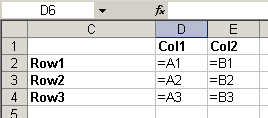
Imagine the following table:
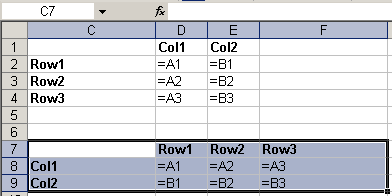
Now I'd like to transform that table into this one (see highlighted range):
If you try a copy > paste special > formulas > transpose, this is what you get:
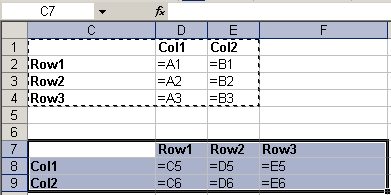
But it is not what we want, is it.
With the following piece of VBA, you can easily transpose your table, without garbling your formulas:
Option Explicit
Sub TransposeFormulas()
Dim vFormulas As Variant
Dim oSel As Range
If TypeName(Selection) <> "Range" Then
MsgBox "Please select a range of
cells first.", _
vbOKOnly + vbInformation, "Transpose formulas"
Exit Sub
End If
Set oSel = Selection
vFormulas = oSel.Formula2 'Note: for older Excel versions, use .Formula
vFormulas =
Application.WorksheetFunction.Transpose(vFormulas)
oSel.Offset(oSel.Rows.Count + 2).Resize(oSel.Columns.Count,
oSel.Rows.Count).Formula2 = vFormulas
End Sub
So how does this work?
First we check whether a range of cells has been selected, otherwise the code will produce a runtime error:
If TypeName(Selection) <> "Range" Then
MsgBox "Please select a range of
cells first.", _
vbOKOnly + vbInformation, "Transpose formulas"
Exit Sub
End If
Next, we store the selected cells in an object variable (which is not really necessary), so we can work with that set of cells:
Set oSel = Selection
Now the formulas of these cells are pulled into a variable of type Variant in one go:
vFormulas = oSel.Formula2
If you step through the code (using my example) the Locals window of the Visual Basic Editor (VBE) shows this for the variable vFormulas after executing the statement above:
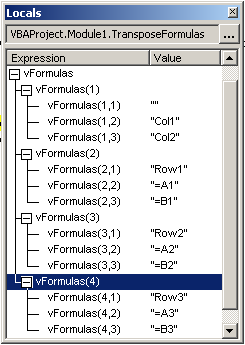
As you can see, vFormulas is a 4*3 array.
Next we want to swap rows and columns of the vFormulas variable, for which I use the Transpose worksheet function:
vFormulas = Application.WorksheetFunction.Transpose(vFormulas)
The structure of vFormulas changes to this:
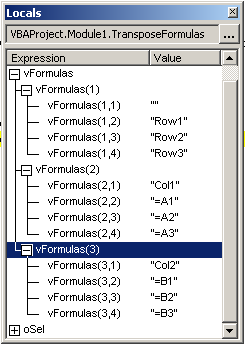
Presto! We now have a 4 * 3 array.
Finally, we need to push back the formulas to the worksheet. To be able to do that, we must specify a target range of the exact dimensions as the array variable. For that I use the Resize method. Note I also move down a couple of cells using Offset, so the copy of the table is placed 2 rows below the original:
oSel.Offset(oSel.Rows.Count + 2).Resize(oSel.Columns.Count, oSel.Rows.Count).Formula2 = vFormulas
Done!
Frequently asked Questions
What is the purpose of the VBA routine provided in the article?
How can you transpose a table of cells while keeping the formulas intact?
Why does the standard copy > paste special > formulas > transpose not work as expected?
What does the VBA code check before proceeding with the transpose operation?
How are the formulas of the selected cells stored in the VBA code?
What Excel function is used in the VBA code to transpose the array of formulas?
How does the VBA code determine the target range to paste the transposed formulas?
What is the role of the Offset and Resize methods in the VBA code?
What happens if the user does not select a range of cells before running the macro?
How does the VBA code handle the dimensions of the transposed formula array?
Comments