
The Excel File Format
Pages in this article
Changing properties of Form controls
I was curious how Form controls are represented in the Excel OpenXML file format, so I started a journey searching for them.
Demo file
I have devised a small file with this on Sheet1:
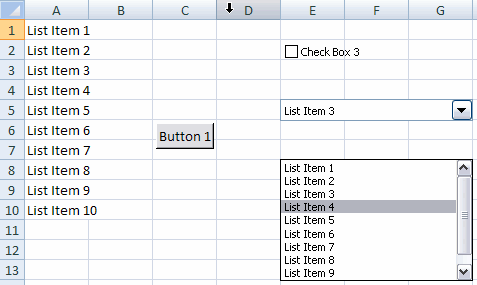
Demo file showing a couple of Form controls
Where Form controls are stored
If you rename the xlsx file to xlsx.zip you can open the package and look inside. Open the folder xl and then the folder Worksheets. Open sheet1.xml. Near the bottom of that file, you can find this entry:

Bottom section of sheet1.xml, highlighting the reference to the form
controls file.
To find out what rId2 points to, open the _rels folder:
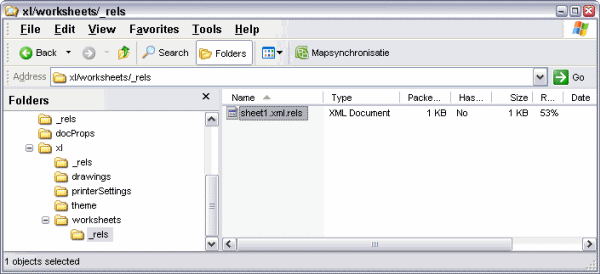
Window of opened zip container showing the worksheets\_rels folder
Open the sheet1.xml.rels folder and find rId2:

Highlighted relevant portion of sheet1xml.rels
So now we know we need to navigate up the folder tree and find ..\xl\drawings\vmlDrawing1.vml.
VML files
There is one vmlDrawing?.vml for each worksheet that contains controls (or any other object that is captured in this vml file).
VML is described as:
"Vector Markup Language (VML) is an XML-based exchange, editing and delivery format for high-quality vector graphics. VML facilitates the exchange and subsequent editing of vector graphics between a wide variety of productivity and design applications. VML is based on XML 1.0, which is an open, simple, text-based language for describing structured data. "
Form controls in a VML file.
Drag the vml file from the explorer window on to your desktop and open the vml file.
If try to you open the vml file in Internet explorer (because it so prettily colours and indents xml) you get an unpleasant surprise, IE asks you whether it should download or save the file, putting you in an endless cycle unless you choose cancel. Luckily there is a tool called "XML notepad" (free download), which shows the xml in various ways. Here is the tool showing the xml portion of the checkbox:
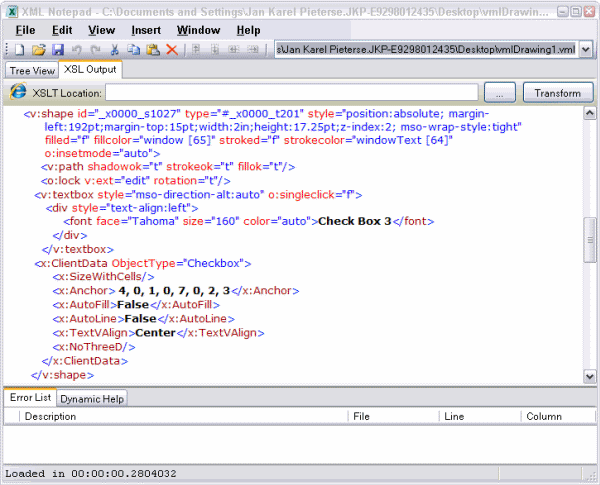
XML Notepad showing the (formatted) xml part of a checkbox from the
forms toolbar on an Excel sheet
Hey! what is that font node doing up there? For over a decade I've been telling people you cannot change a form's checkboxes font. Can you? Let's just try.
Changing the font of a checkbox (from the forms toolbar)
Note (2013-01-15): It seems that the behavior described below has been changed. If you use Excel 2010 to open a file changed using this trick, the font properties of the checkbox are no longer affected (which makes sense in a way, because you can also not change them from the user interface).
Switch to the treeview tab of XML notepad (if you're using that too) and edit the font face property and the size. I changed it to:
<font face="Arial Black" size="320" .....
Lets see what that did to our file. Follow these steps:
- Save and close the vml file
- Drag the vml file from your desktop (I do assume you opened and changed that one) to the Drawings folder inside the xlsx.zip container and confirm you want to replace the one that's there.
- Close the explorer window and rename the xlsx.zip back to xlsx.
- Open in Excel.
Surprise, surprise, your checkbox now looks like this:
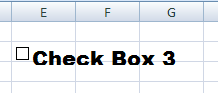
Forms checkbox in Excel with modified font
Lets stretch our luck a bit. Save the file as 97-2003 file format. Now try to open it in any of those formats (I tried 2003). Well, surprise, surprise, it sticks!
Changing a control's position
The position of control is denoted by the Anchor node inside the control's set of nodes:
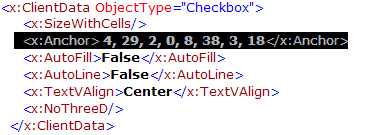
XML from the vmlDrawing1.vml file with size and position part
highlighted
So what does this mean? The first two numbers tell us where the top-left corner of the control is horizontally: the column (zero based) and the offset from the start of the left of that column. The next two numbers represent the row number (again, zero based) and the offset downwards (pixels) from the top of that row. The next four do the same for the bottom-right corner.
In other words, in the xml above, the control's top-left corner is in column E, row 3. It is shifted to the right by 29 pixels. And the bottom-right corner is in cell I4, shifted 38 pixels to the right and 18 downwards, relative to that cell's top-left position.
Well, that's it. I hope I have given you a head start on working with form controls in the new Excel 2007 Open XML file format. I leave it up to you to figure out what the other nodes in the vml file are for.
Download
I have made the file used in this article available for download:


Frequently asked Questions
What is the Excel OpenXML file format and how are Form controls represented in it?
How can I locate where Form controls are stored inside an Excel .xlsx file?
What is the purpose of the VML files in relation to Excel Form controls?
How can I view and edit the XML content of a VML file containing Form controls?
Is it possible to change the font of a checkbox from the Forms toolbar in Excel?
What steps are needed to apply font changes to a Form control checkbox in Excel?
How can I change the position of a Form control in the Excel OpenXML file format?
What do the numbers in the Anchor node of a Form control's XML represent?
Can font changes to Form controls persist when saving in older Excel file formats?
Comments