
Opening Corrupt Excel files
Sometimes one gets unlucky and a file is corrupted. This may result in the file not opening at all or in error messages during opening.
Here are some options to try and open a corrupt file or retrieve information out of it.
- Set calculation to manual( Open Excel, Choose Tools, Options from the menu, click the Calculation tab and choose Manual. Hit OK. Now try to open the file.
- Open the file, but disable macros (assuming you've set macro security to medium: Tools, Macro, security)
- As soon as you've clicked the disable macros button, press control-pageup or control-pagedown, thus changing sheets. Sometimes the corruption is inside a chart on a specific sheet, changing the sheet to another may prevent a crash, enabling you to copy the other sheets.
If that does not work, try creating a link to the file in an empty cell in a fresh workbook. Type this formula (adapt path, filename and sheetname):
='c:\my documents\[MyFileName.xls]Sheet1'!A1
and copy right and down. This at may get you the worksheets values.
if you don't know the sheet names, omit it by entering this:
='C:\PathToFile\[MyFileName.xls]'!A1
and press enter. If XL (2000) is able to extract them, it will prompt you for a sheet name.
Sometimes the Excel viewer, Word or even Internet explorer (v5) enables you to open the file and copy information out of it.
If the file is not protected, maybe you can open it with OpenOffice (www.Openoffice.org).
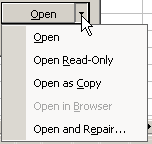
Also, Excel XP and 2003 can sometimes repair XL files with trouble. Simply choose File, open, select the problem file and instead of simply hitting the "Open" button, click to the right of it on its tiny down arrow to expose more options (see screenshot below)
Finally, sometimes a corrupt file that still can be opened, can be cured using this method (Excel 2000 or up):
- Open the file
- Save-as filetype Webpage
- Close the file
- Open the html file
- Save-as normal Excel workbook.


Comments
Showing last 8 comments of 68 in total (Show All Comments):Comment by: matt (4/26/2010 11:06:57 PM)My workbook gave an error when opening. The ThisWorkbook module became corrupt through years of changes. VBAcodecleaner does not work on this module, as stated by the developer Rob Bovey. I opened the workbook with macros disabled, and got access to everything. I copied everything over to a new workbook. I copied the code in Thisworkbook to a text file, saved it, then copied the code into the new Thisworkbook module. This procedure is not too much trouble really. Be sure to MOVE not COPY over the worksheets to stop all the Forms button and Forms textbox macros from pointing to the old file!
Comment by: Jan Karel Pieterse (4/26/2010 11:50:06 PM)Hi Matt,
Thank you for sharing. Of course moving the worksheets is a good tip, except if their code modules need a cleanup too, in that case you're out of luck and have to start re-creating them one at the time and copying their content. Their VBA code must then be copied like you described.
Comment by: yashpal kandari (5/3/2010 11:12:25 PM)exel can not open file, file name.xlsx becouse the file format or file extion not valid veryfi the file hasbeen not crupted and that file extion match is the format of the file
Comment by: Jan Karel Pieterse (5/4/2010 12:34:06 AM)Hi Yaspal,
This sounds as if you have saved a file to xlsx but without changing the file format itself. WHat type of file was the file before you saved it (xls, xlsm, xlsb)? Try changing the extension to that format and then re-open the file.
Comment by: Danny Teh (6/29/2010 6:25:25 PM)Hi Jan,
I encounter a few error when I tried to open my workbook.
The error message are as following:
a) File error: Data may be lost
b) Unable to read file
Error a:
- Tried opening in a excel 2003 SP2 platform, it works fine w/o error but error start to appear when I try opening it from 2003 SP3 excel onwards till excel 2007.
Error b:
- Assuming that there are 3 users sharing this workbook, only one of the user encounter such error.
Appreciate your advice on how to solve this issue & their workaround if possible.
Comment by: Jan Karel Pieterse (6/29/2010 9:16:18 PM)Hi Danny,
First of all, I'd like to recommend you NOT to use the sharing feature in Excel, it was badly programmed and is the root cause of many errors similar to the ones you report here.
I would take a different approach and NOT share the file, but have people wait for the file to become available for writing.
If simultaneous editing is needed, I would advise to look for a different solution, like a database application.
If you insist on sharing, I'd remove the sharing and try the steps outlined above (especially the html route in 2003) to get rid of any possible corruptions and then share the file again once done.
Comment by: Steve S (7/8/2010 10:42:35 PM)I have a few Excel files that are stating "this file is corrupt and cannot be opened". I have followed several "tips" online for trouble shooting the error, such as trying to open excel in safe mode, changing the file type to a different format, etc, and nothing works. It has only occurred to a handful of files, and not all. I am not sure what else to try, as I need these files for work, and now cannot access them.
Comment by: Jan Karel Pieterse (7/9/2010 1:02:43 AM)Hi Steve,
Have you tried opening the files in OpenOffice?
Have a question, comment or suggestion? Then please use this form.
If your question is not directly related to this web page, but rather a more general "How do I do this" Excel question, then I advise you to ask your question here: www.eileenslounge.com.